- Mixed or large stacks: Batch Print Software puts PDFs, Word files and images into one print queue
- Up to 15 files of one type: select them in File Explorer, right-click and choose Print
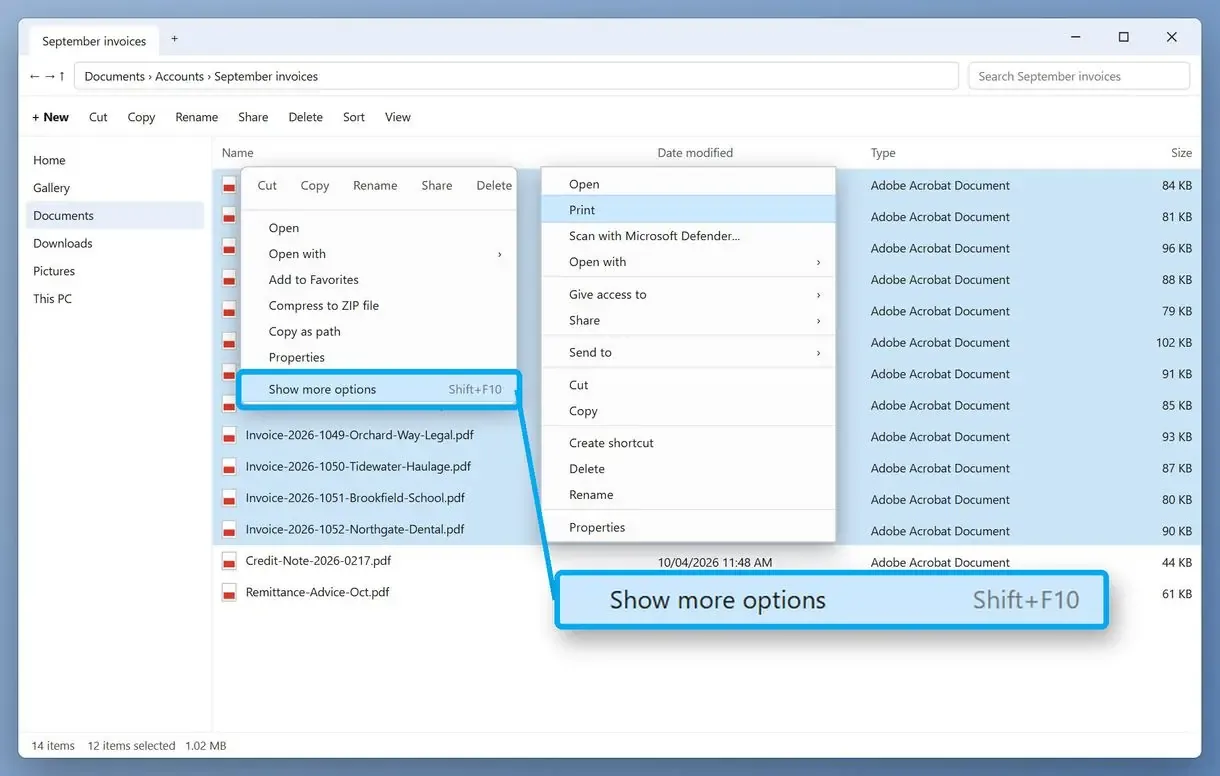
- Windows 11 with no Print in the menu: right-click, choose Show more options, then Print
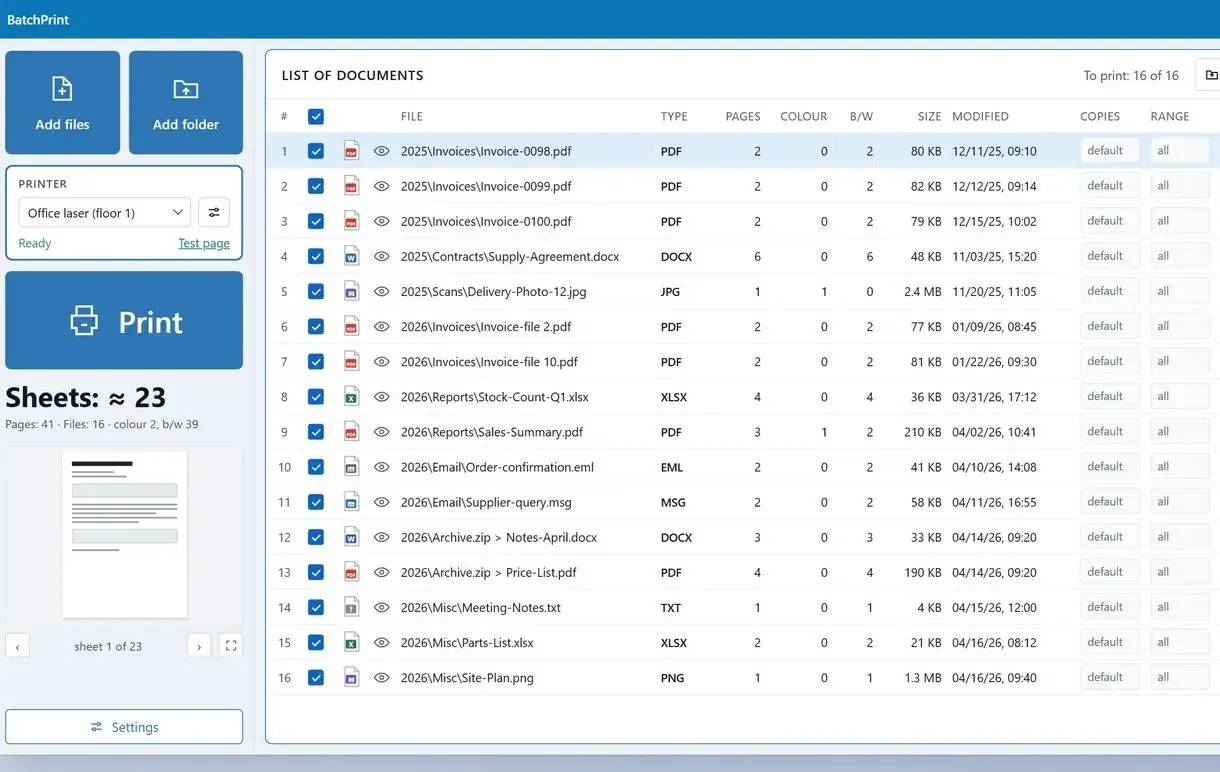
One question decides how to print multiple files at once on Windows. Are they all one type, and are there 15 or fewer? If yes, File Explorer can do it. Once you need to print a bunch of files in mixed formats, or a folder of 40 invoices, Print vanishes from the right-click menu and you are back to having to open them one by one.
In this guide
- Mixed formats or a whole folder: one print queue app
- Up to 15 files of one type: File Explorer right-click Print
- Windows 11: find Print under Show more options
- Page order matters: merge into one PDF and print once
What you need
- Batch Print Software on Windows 10 or 11, for mixed stacks and big folders
- The files gathered in one folder
- A default printer set in Windows
- About 10 minutes for a first run
How to print a mixed batch of files in one queue
A print queue program reads PDFs, Word and Excel files, images and saved emails from one folder and sends them to one printer with one set of options, without opening each file. Batch Print Software does this on Windows.
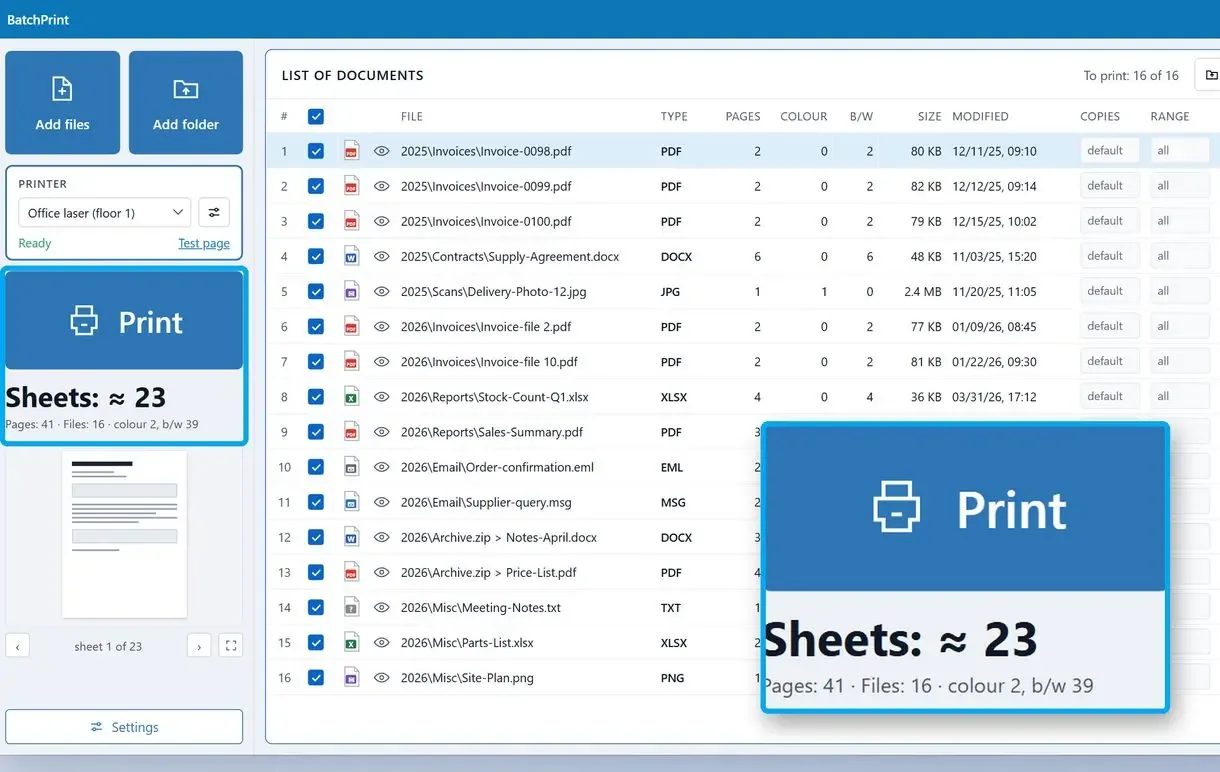
Add a folder and the list fills with whatever you need to print: PDF, DOCX and XLSX files, JPG, PNG and HEIC photos, TXT, CSV, XPS, and saved EML and MSG emails. DOCX and XLSX print on a PC without Office; older DOC, RTF and ODT files need Office or LibreOffice installed. Set duplex, pages per sheet, margins and a watermark for the whole run. One file can still get its own layout.
One office worker described downloading 20 to 30 PDFs in one go every week and printing each file by hand. With a queue, that weekly stack takes one Add Folder and one Print.
Right-click Print in File Explorer
- One file type per selection
- Print disappears past 15 files
- Last-used printer, no settings dialog
One print queue
- PDFs, Word files and images in one list
- Duplex and pages per sheet set once
- Sheet estimate before you press Print
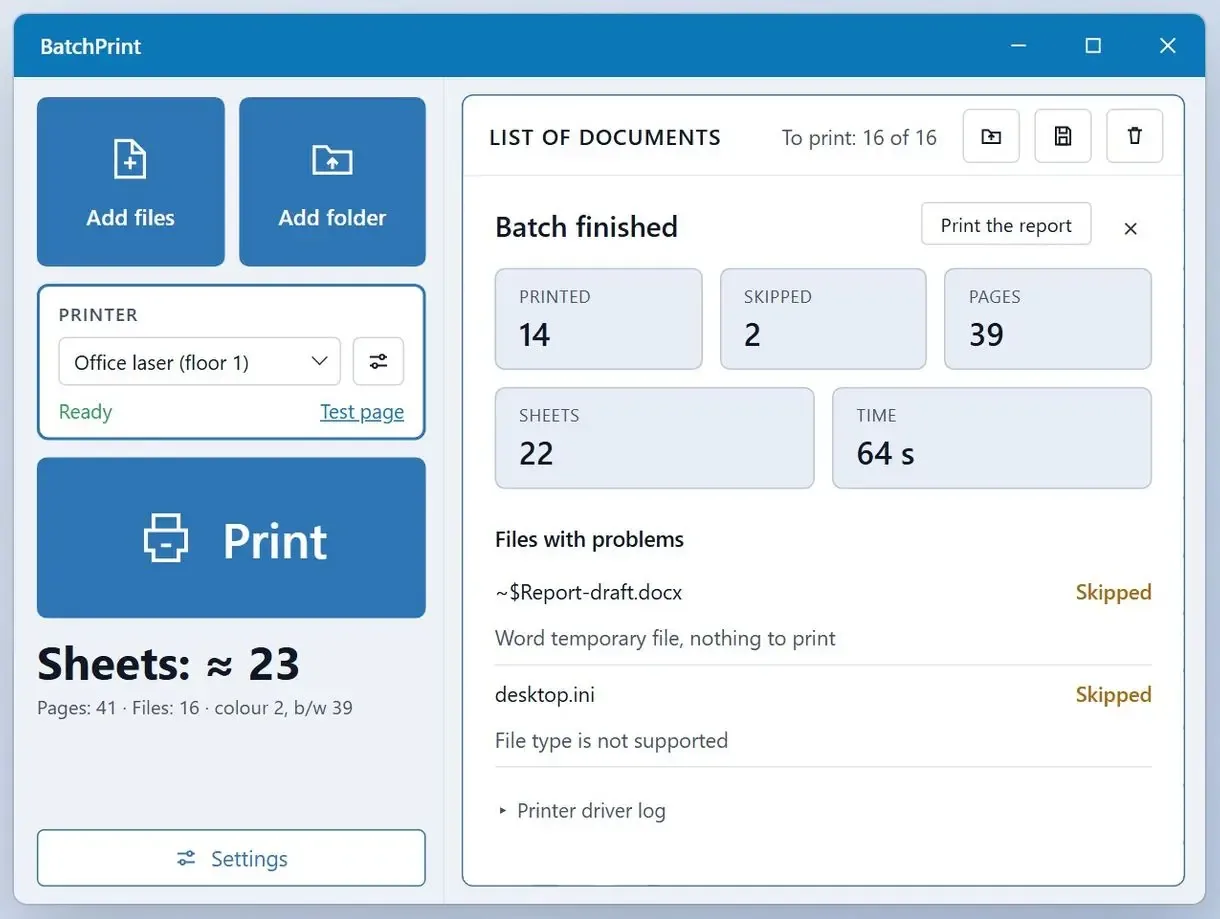
Printing all files in a folder of mixed types, in three steps
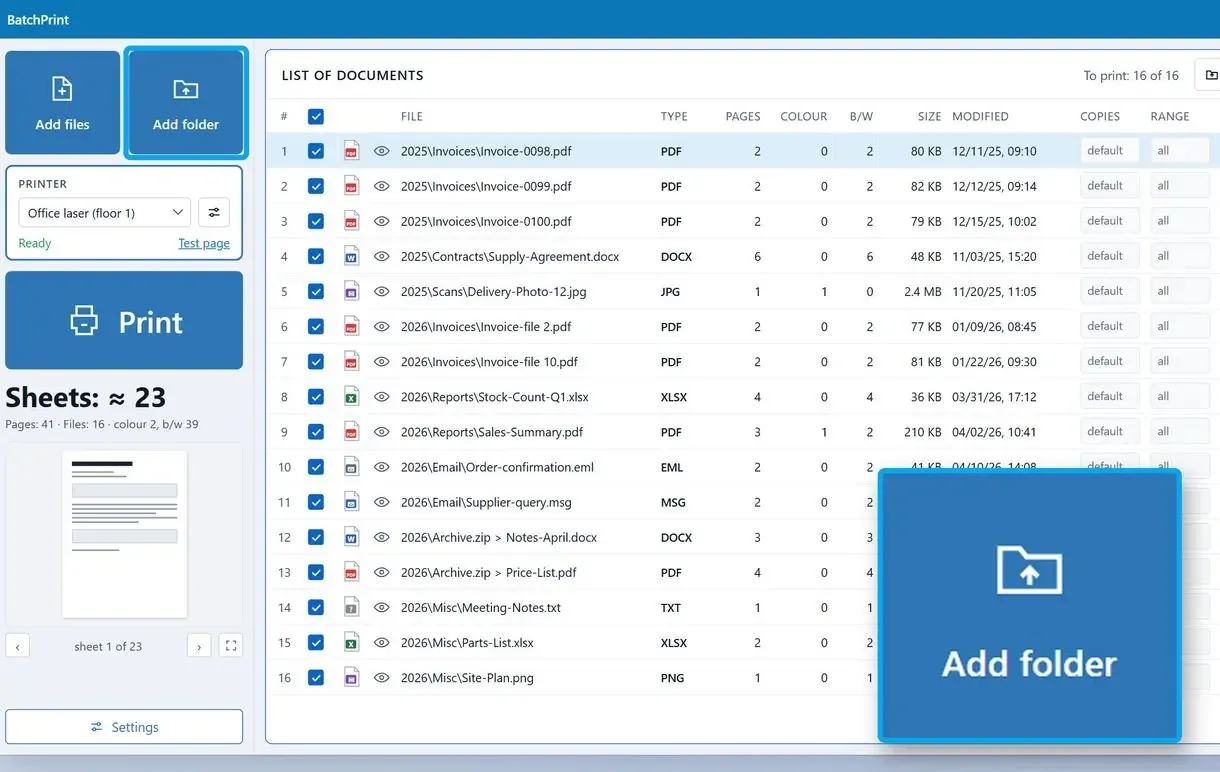
Put the files in one folder and add it
First things first: gather everything in one folder. Click Add Folder or drag the files onto the list.
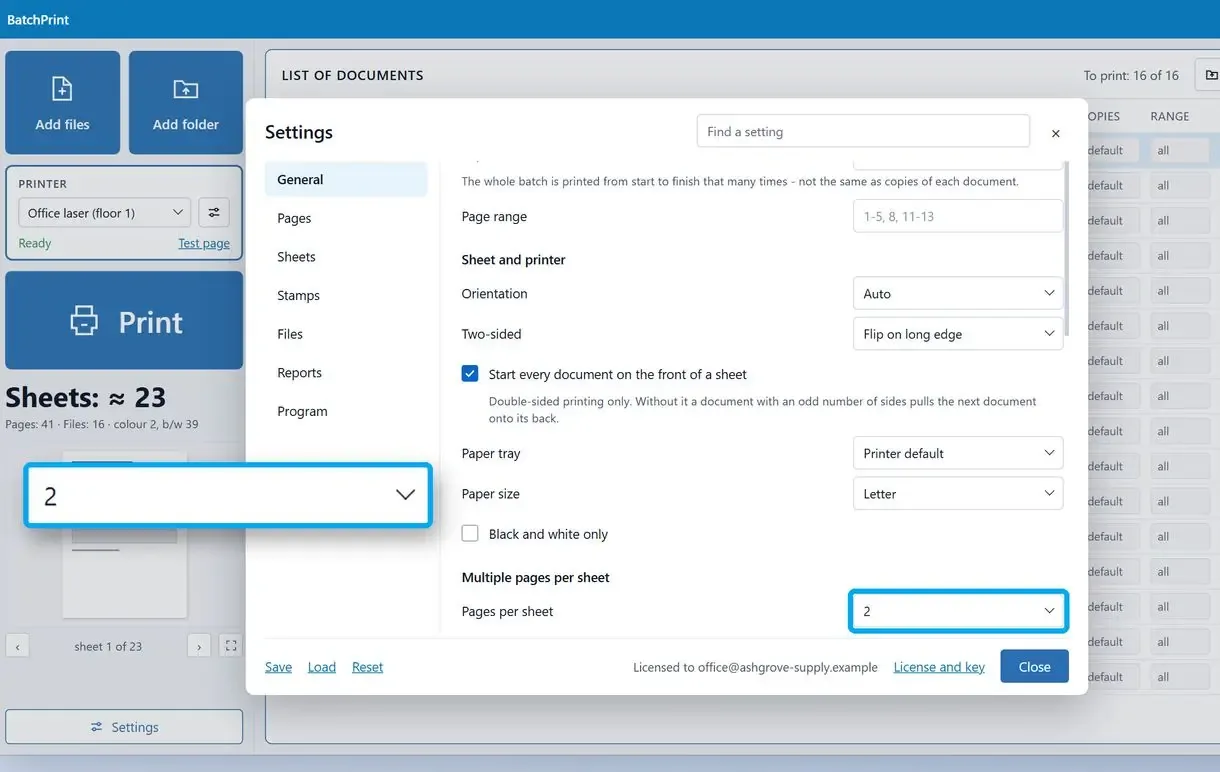
Check the list and set the print options
Untick files you want to skip and drag the rest into the order you need. Pick duplex, pages per sheet or copies for the run, or open one file's settings when it needs a different layout.
Press Print and watch the page count
The counter under Print shows roughly how many sheets the run will use. Press it, and the same button turns into Stop while the queue prints.
How to print multiple files from File Explorer
Select up to 15 files of the same type, right-click one and choose Print. Windows opens each file's default app in the background and sends the pages to your default printer, with no printer dialog.
Hold Ctrl and click each file, or press Ctrl+A for the whole folder. Right-click a selected file and pick Print. Windows starts printing each file one by one. The UCLA IT guide to bulk printing says the files should share one type and the job goes to the printer you used last.
One pro tip comes before you select anything. Make the right printer the default (Microsoft's steps for a default printer). Skip it, and Windows might ask you for the printer on each document or send the whole stack to the office copier, and this defeats the purpose of a single run.
Print multiple PDFs at once on Windows 11: why is Print missing from the menu?
Windows 11 opens a shorter context menu first. Click Show more options to get the classic menu, where Print sits. If Print is still absent, the selection most likely mixes file types or holds more than 15 items.
One Windows 11 user wrote that Quick Print is no longer an option, so every document has to be opened before it prints. Another found no Print entry even for six PDFs and was sure the same selection printed fine on Windows 10.
No single confirmed cause explains a missing Print on one PDF. If Show more options does not bring it back, open the file in its app or add it in a print queue.
How to print many files at once when Windows drops Print past 15 files
Select more than 15 files and File Explorer trims its context menu, so Open and Print disappear. Split the folder into groups of 15 or fewer, or use a program with its own print queue.
Even under 15, results can vary. An office admin described staff selecting anywhere from 2 to 50 files and getting a random number to print, a different count each time; the fix there was a setting in the PDF reader. Count the pages in the tray before you file the stack.
Can you print PDFs, Word documents and images in one batch?
Usually not from File Explorer. A mixed selection can hide Print altogether. A print queue program takes the mix in one run.
Explorer launches the default app for each file and hands the pages to the print spooler. Excel workbooks can stumble, and something that requires an app to open, a CAD drawing on a PC without CAD software for example, may not print at all. One user printing PDFs from a network folder watched Acrobat open a fresh window for every file, locking the machine until the last page came out.
For a mixed stack without extra software, group by type: all PDFs, then DOCX, then photos. If photos come out at odd sizes, resize multiple images to one size first.
A single large image spread over several sheets is a different job; see how to print a poster on multiple pages.
How to print multiple Word documents at once, and PDFs too
For up to 15 DOCX or PDF files, use Explorer: select them, right-click and choose Print. That is how to print multiple Word documents at once: Word opens and closes each document in turn, and your default PDF reader does the same for PDFs.
One Windows tutorial says the right-click trick usually works like a charm for PDFs and photos and can stumble on Excel workbooks. For Word, the Beacon guide to printing several Word documents pulls the files into one document with Insert > Object > Text from File, then prints that single file. The Word-only walkthrough is here: print multiple Word documents at once.
Can you print multiple PDFs at once the same way? Yes, and the PDF-only page covers it: how to print multiple PDFs at once.
When should you merge files into one PDF and print once?
Merge when page order matters, or when the stack goes to a print shop as one document. You print once and the order is locked, but you need a PDF tool to combine the files, and page layouts can shift.
On forums a common workaround is to combine every PDF into one file and hit print once. It suits final PDFs. Word files and photos need converting first, a step per file that makes merging slower than printing the originals.
Which method fits your stack of files?
One type and 15 or fewer points to File Explorer; anything bigger or mixed points to a print queue.
| Method | Best for | File types | Files per run | Printer settings |
|---|---|---|---|---|
| Batch Print Software | Mixed folders, weekly runs | PDF, DOCX, XLSX, images, TXT, XPS, EML, MSG | 10 in the trial; a license lifts the cap | Duplex, pages per sheet, margins, per file |
| File Explorer Print | A few files of one type | One type per selection | 15 | None, default or last printer |
| Windows 11 Show more options | Same as Explorer on Windows 11 | One type per selection | 15 | None |
| Merge into one PDF | Fixed page order | PDF; others after conversion | One document | Set once in the PDF reader |
| Open and print each file | One-off jobs | Any | 1 | Full dialog per file |
Sources
- Microsoft Learn: context menus shortened over 15 files - Why Open and Print vanish past 15 items
- UCLA IT guide to bulk printing - Right-click printing on Windows and the Mac print queue route
- Microsoft Support: set a default printer - Default printer and the last-used printer setting
- Beacon guide to printing several Word documents - Insert > Object > Text from File to join Word files
- Wikipedia: spooling - How the print spooler queues jobs
FAQ
How to print multiple documents at once without opening each one?
Print without opening them one by one on screen: select the files in File Explorer, right-click and choose Print; Windows runs each file's app in the background. That works for up to 15 same-type files.
Is there a way to bulk print documents?
Windows has the right-click Print in File Explorer, which stops at 15 files of one type. Here is how to print many files at once beyond that: split the folder into groups or use a print queue program.
How to print all files in a folder?
Open the folder, press Ctrl+A and choose Print from the right-click menu if it holds 15 or fewer files of the same type. A larger or mixed folder goes into a print queue tool via Add Folder.
Why can't I print multiple PDFs at once on Windows 11?
If Print is missing from the right-click menu, click Show more options first. If it is still gone, check that the selection has 15 or fewer files of one type and that a default printer is set in Windows.
How to print multiple PDF files at once on a Mac?
Both routes here are for Windows. On a Mac, open the printer's queue from Printers & Scanners in System Settings and drag the PDFs into it; the UCLA guide linked above lists the steps.
How many files does the print queue program print on the trial?
The free trial prints 10 files per run and 100 files in total, and adds a short notice page at the end of each run. Files past the cap stay in the list with a note. A license removes all three limits.
Can I print email attachments or saved emails in one batch?
Save the attachments into one folder, then print that folder like any other stack. The queue program in this guide also reads saved .eml and .msg files without Outlook, so drag the messages out of Outlook into the same folder first.