Quick answer:
- Any number of files or a whole folder: Batch Print Software prints the list in your order
- Up to 15 files on Windows 10 or 11: select them in File Explorer, right-click and choose Print
- More than 15 without extra software: print in batches of 15 or run a Word macro
- One continuous printout: merge the files in Word with Insert > Object > Text from File
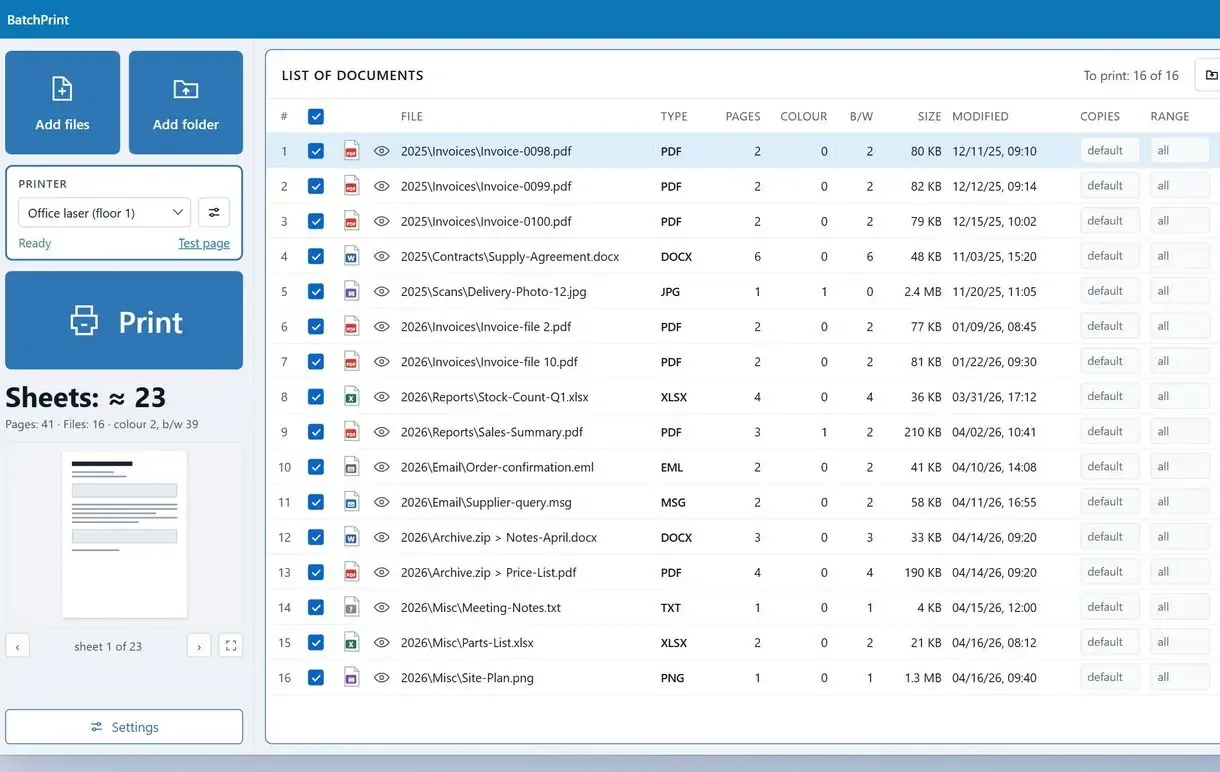
Select a 16th document in File Explorer and Print disappears from the menu.
In this guide
- Any size: one ordered print list
- Up to 15 files: right-click Print in File Explorer
- Past 15 for free: batches or a Word macro
- One printout: merge the files in Word
What you need
- Batch Print Software on Windows 10 or 11
- Microsoft Word, for .doc and .rtf files and the macro
- The Word files gathered in one folder
How to print all documents in a folder: Word files in one run
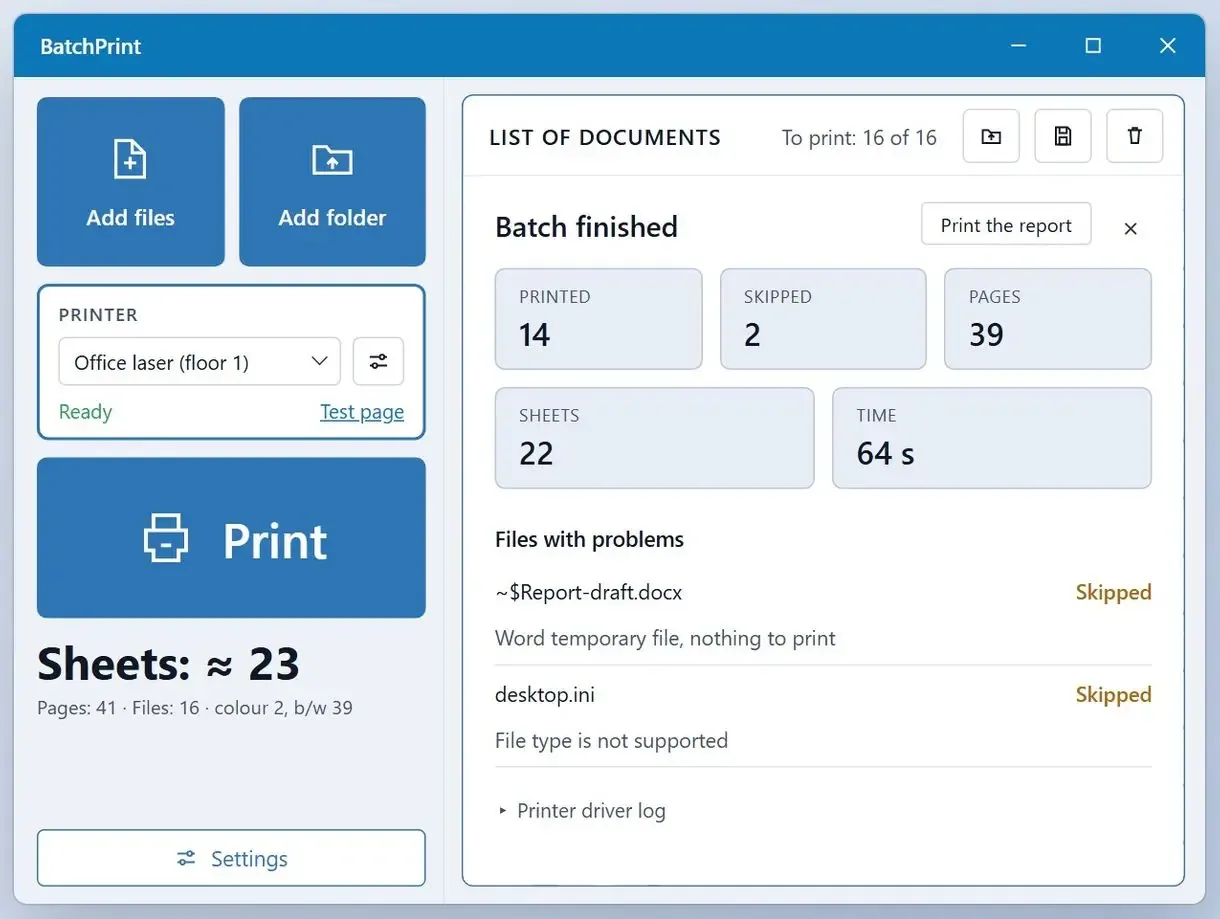
With Batch Print Software, add a folder and set the print order and settings once. Files print top to bottom without you opening them. A failed file is skipped with a reason, and the run continues.
One screencast describes a familiar office moment. After an address change, client notices sit in Word, one file per client, and when all documents are prepared someone has to print them. With forty letters, you have to send every single document for printing. For dozens or even hundreds of Word documents, groups of 15 take too long.
You can add individual files or entire folders; subfolders come along by default. Set the printer, copies, duplex and pages per sheet for the batch. Change a single row if one contract needs two copies.
Right-click Print in File Explorer
- Print disappears past 15 selected files
- Order follows the Explorer view
- Everything goes to the default printer
A print list
- A whole folder, subfolders included
- Order set by sorting or dragging rows
- One set of settings, plus per-file exceptions
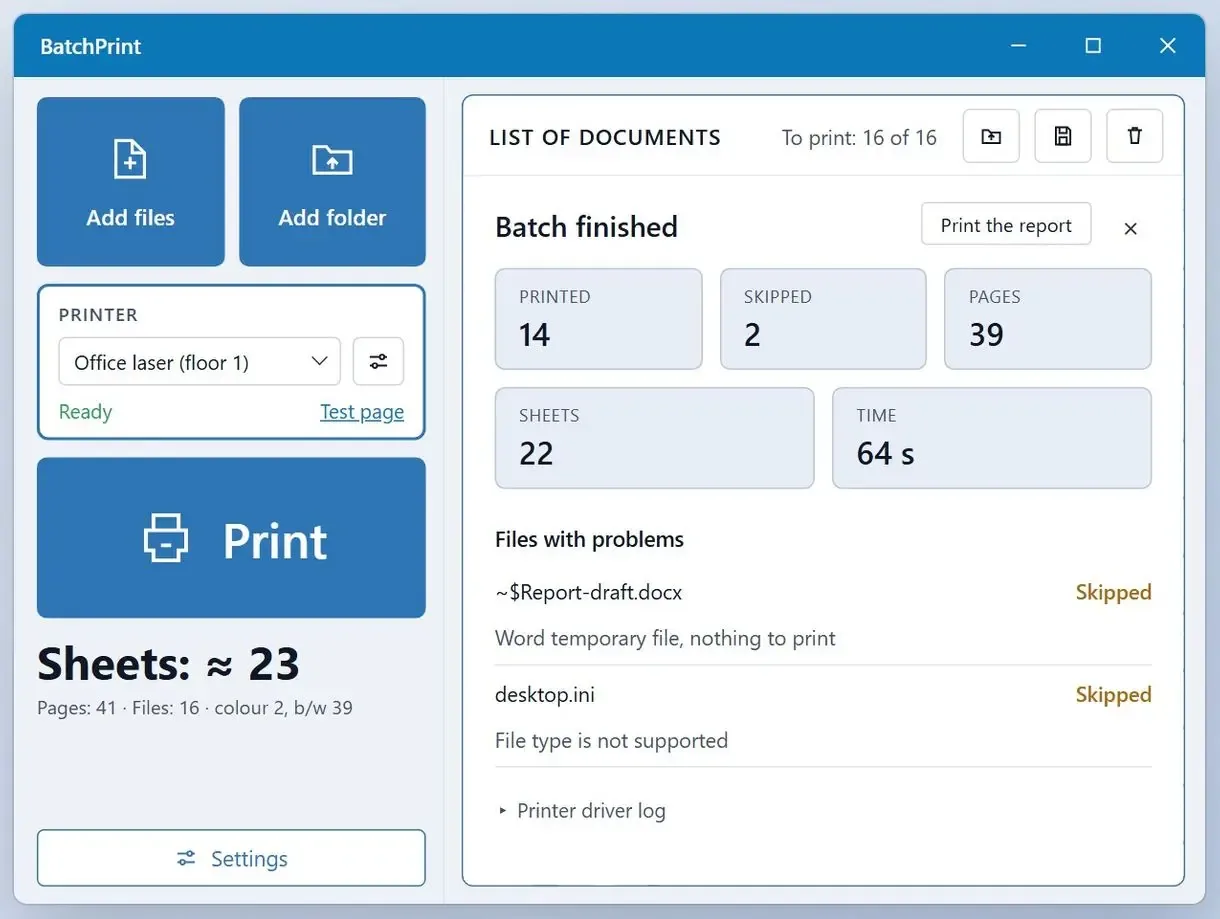
How to print all files in a folder in three steps
Add the Word files or a whole folder
Add documents individually or select a folder.
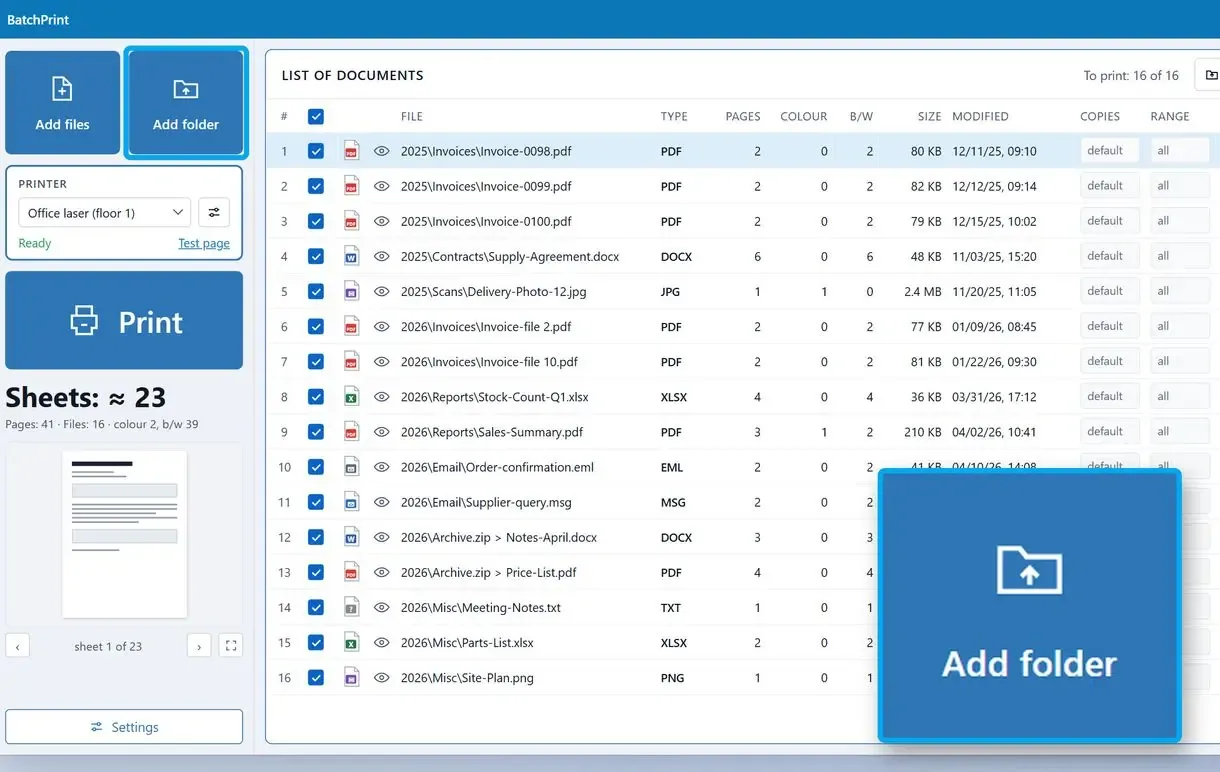
Set the order and the print settings once
Sort by file name or drag rows into place. Pick the printer and number of copies.
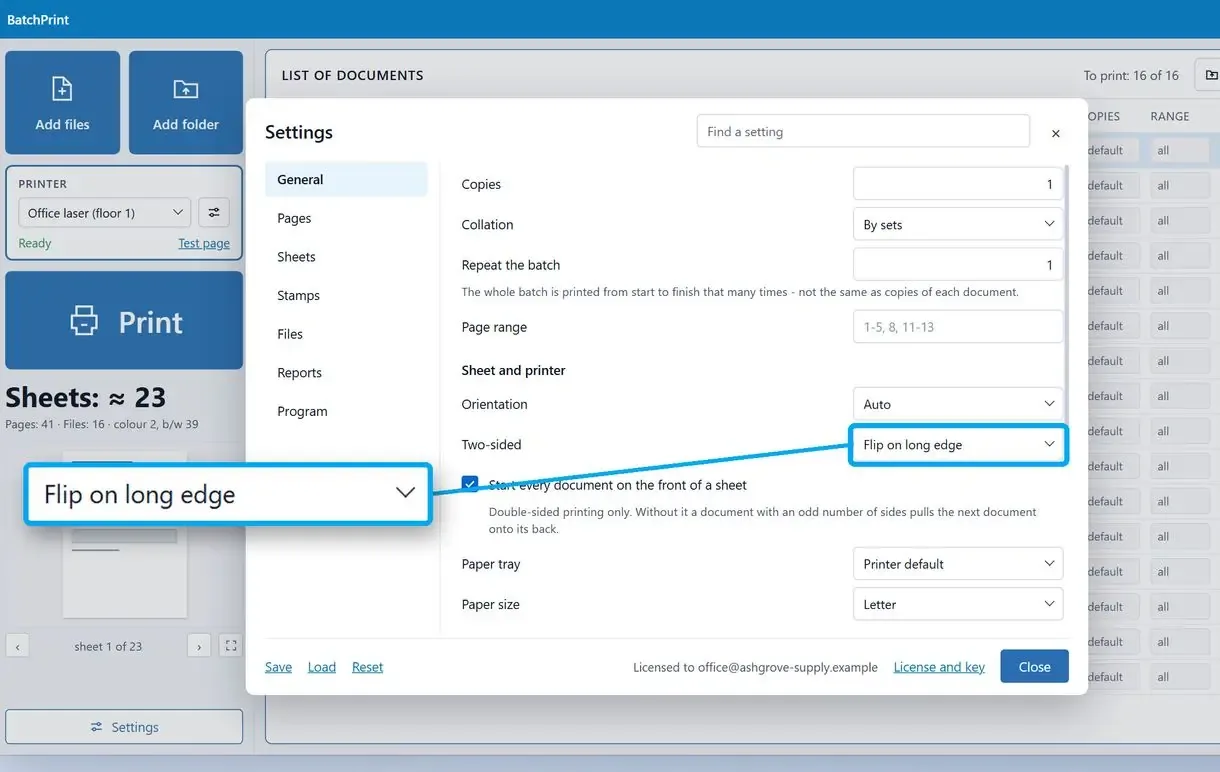
Click Print and check the report
The report gives a reason for each damaged or password-protected file skipped, so you can reprint that file.
Print multiple Word documents at once from File Explorer
Select up to 15 Word files, right-click and choose Print to print for free. Each file goes to your default printer without a print dialog or batch settings.
- Put the Word files in one folder and sort the view by Name
- Select the files, not the folder: Ctrl+A for all, or Shift-click for a range
- On the selection, make a right click and choose Print
- Wait until the last file leaves the print queue before selecting the next group
A forum moderator warns that Print may disappear when you select Word and PDF files together. Send PDFs as a separate group; you print multiple PDFs at once the same way. To change printers, set a new default in Settings > Bluetooth & devices > Printers & scanners on Windows 11 (Settings > Devices > Printers & scanners on Windows 10).
Where is Print on Windows 11?
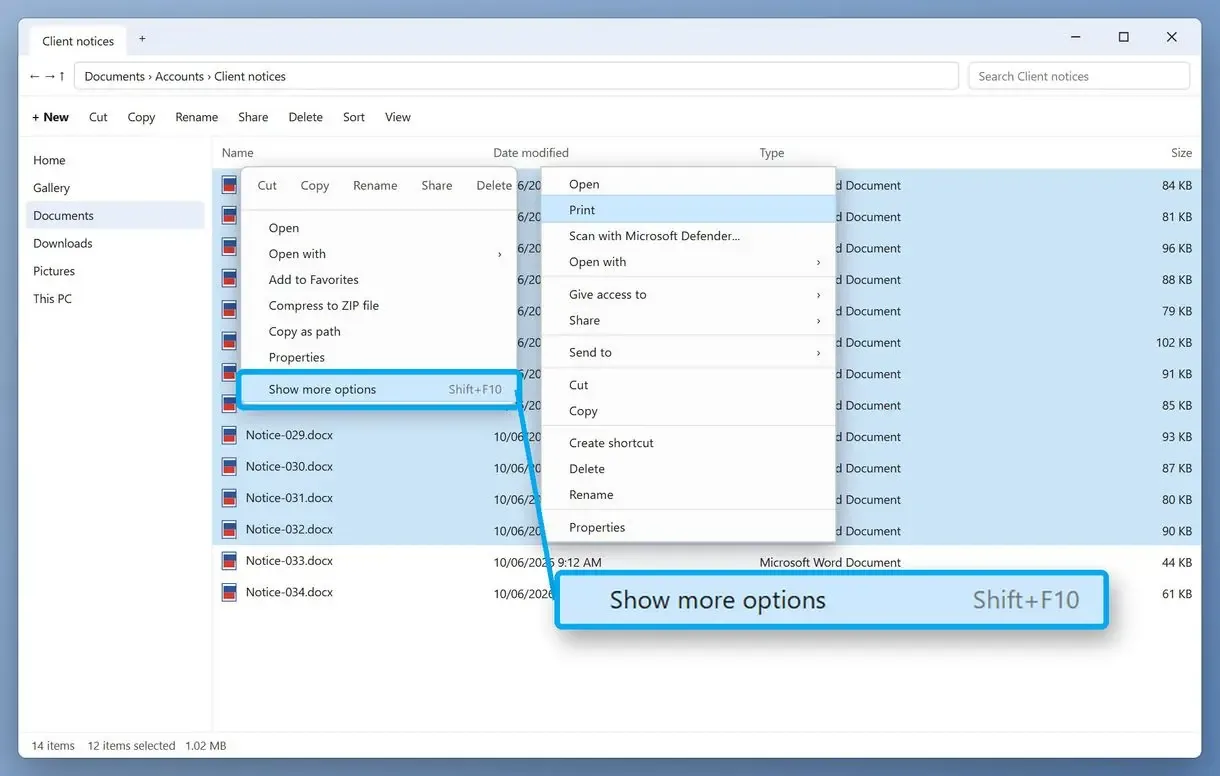
On Windows 11, Print sits under Show more options in the shortened right-click menu; Shift+F10 opens the full menu. One user who moved to Windows 11 found Quick Print missing and blamed a Windows 11 issue.
If your default is Microsoft Print to PDF, a Save Print Output As window opens for every file. Switch to a real printer first, or 15 files mean 15 save prompts.
How to print multiple files at once when Print disappears past 15 files
Windows shows Print only for selections of 15 files or fewer. Split larger selections into groups of 15, or use a Word macro to open and print every file in a folder.
Groups work for a one-off job. Someone with more than 100 Word files printed through File Explorer ten at a time without opening them.
With Word installed, a macro removes the cap. DataNumen's walkthrough of the macro route uses the same open-print-close loop:
Sub PrintFolder()
    Dim p As String, f As String
    p = "C:\Print\"
    f = Dir(p & "*.docx")
    Do While f <> ""
        With Documents.Open(p & f, ReadOnly:=True)
            .PrintOut Background:=False
            .Close SaveChanges:=False
        End With
        f = Dir()
    Loop
End Sub
Test on a copy of the folder first. Paste the macro in Word with Alt+F11 > Insert > Module, change the folder path (and *.docx to .doc to include .doc and .docm files) and press F5. Background:=False makes Word finish each file before opening the next (Document.PrintOut reference).
How do you keep Word files printing in the right order?
File Explorer uses the order files appear in the window, regardless of the order you clicked them. Sort by Name before selecting. A print list uses row order.
A Windows user who hit the 15-file wall also received pages in random order and had to sort them by hand. Use leading zeros in file names (01-notice, 02-notice) so every route sorts them the same way.
Guides say a sorted folder prints in display order, yet people still report shuffled stacks. Test with three or four files before you send fifty.
Can you print multiple Word documents without opening them, or without Word?
Word works in the background without you opening each file. Without Office, Batch Print Software reads .docx and .docm files directly to print them, leaving out headers and footers.
One office worker facing hundreds of documents over the coming months wrote that opening each would drive them mental. As WiseChecker's guide describes, Explorer launches Word out of sight for each file, prints it and closes it.
With Word installed, a print list passes each file to Word, preserving the layout you see on screen. Without Word, a .docx file is read as Office Open XML, and page breaks can shift slightly. The .doc, .rtf and .odt files need Office on the PC.
How do you print Word documents without comments and tracked changes?
Turn off Print Markup in the print window, or clean the files before a bulk run. A right-click batch can print comments and tracked changes.
An advisor answering a bulk-print question confirmed Word has no global setting to turn off Print Markup.
- One file: File > Print, open the first list under Settings and untick Print Markup
- A stack: in each file, use Review > Accept > Accept All Changes. Go to Review > Delete > Delete All Comments in Document and save a clean copy to print
Can you combine several Word documents into one and print them together?
Yes. In a blank document, use Insert > Object > Text from File to pull the selected files in one after another. The result prints as one job.
The Beacon guide to printing merged Word files adds a page break to each template so every document starts on a fresh page. Print the merged stack with only two clicks, Ctrl+P and then Print. It goes out as one job, not each file as a separate print job, and one video tutorial on merging warns that formatting may change when the source files use different templates.
Which way fits your stack of Word files?
For fifteen or fewer files occasionally, use Explorer. A print list is worth setting up for a bigger stack or a run you repeat every month.
For five letters, opening and printing each file is fine. Beyond that, one screencast author calls the routine slow and boring, with a chance to miss one or even several files.
- 15 files or fewer, one file type: File Explorer
- Up to about 100 files, once: groups of 15, or the macro if VBA does not scare you
- Any size, a fixed order or per-file settings: the print list
- One booklet from a short stack: merge in Word
If you regularly print multiple Word documents, save the list in batch print software and load it next time.
Another walkthrough: printing several Word files at once.
Sources
- Microsoft Learn: Documents.Open method (Word) - the macro call that loads each file, with its ReadOnly argument
FAQ
How to print multiple Word documents at once on Windows 10 or 11?
Select up to 15 Word files in File Explorer, right-click > Print; on Windows 11 Print sits under Show more options. For more files, use groups of 15 or a print list.
How can I print a Word document without opening it?
Right-click the file in File Explorer and pick Print. You skip opening it yourself, though Word starts in the background to send the pages to your default printer.
How do I print multiple documents in Microsoft Word?
Word prints only the open document. Use a folder macro or merge the files to print several from inside Word.
Why do multiple Word documents open at once?
Pressing Enter on selected files opens each in its own Word window. Choose Print from the right-click menu to print in the background.
How do I bulk print multiple documents?
Group files by type for File Explorer, or add Word files and PDFs together to a print list that accepts mixed formats.