Quick answer:
- How to print multiple PDF files without opening them: for dozens of PDFs or a whole folder, Batch Print Software prints them without starting a PDF reader
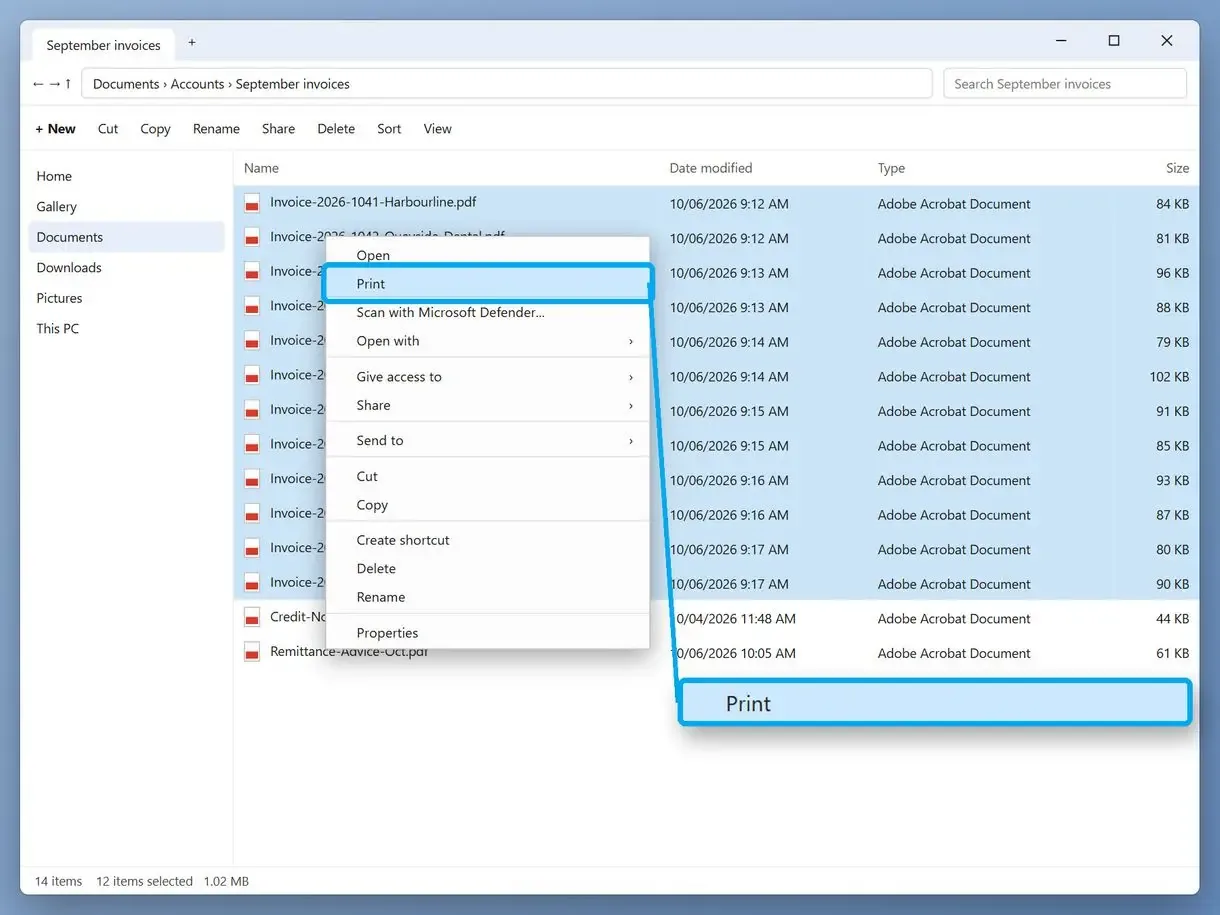
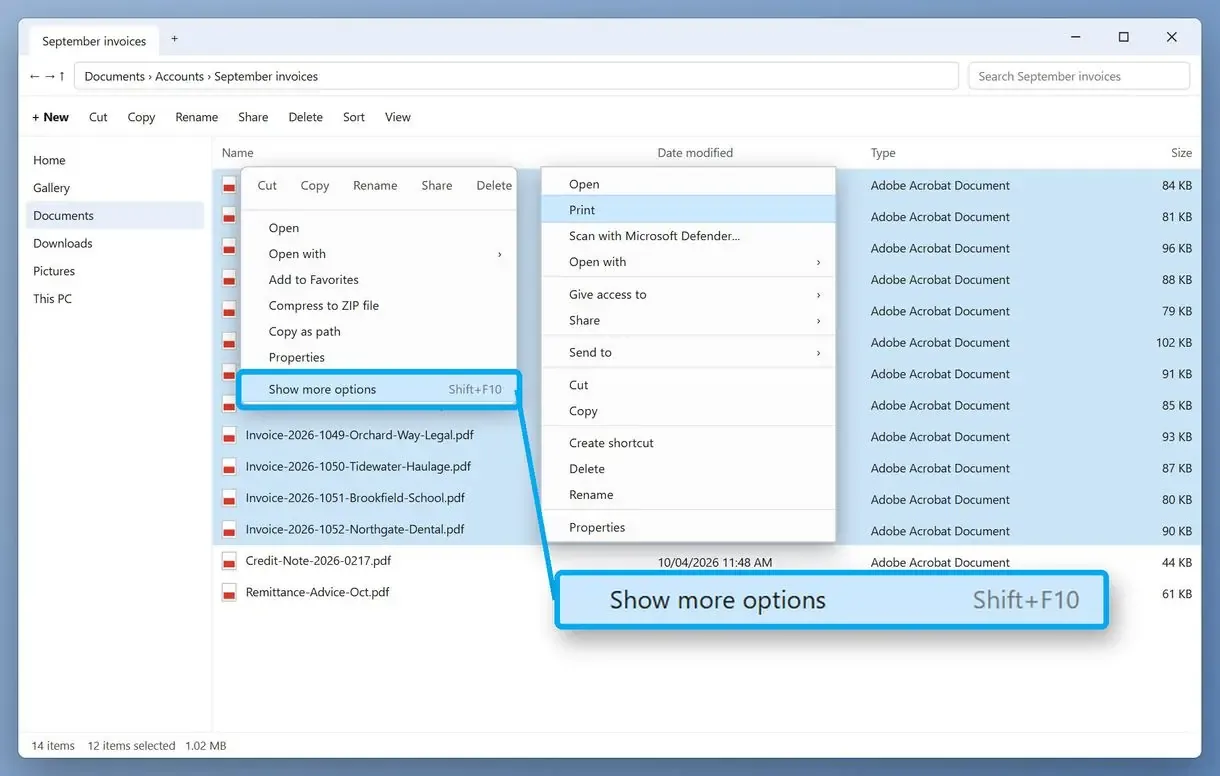
- Up to 15 PDFs in File Explorer: select them, right-click and choose Print (on Windows 11, open Show more options first)
- PDF attachments in Outlook: save them to one folder and print from File Explorer
In this guide
- No reader at all: load the PDFs into a print queue app
- Up to 15 files: right-click Print in File Explorer
- Print hidden or blocked: drag onto the printer icon or use Send To
What you need
- Batch Print Software on a Windows PC, for stacks of more than 15 files
- Your printer, set as the Windows default
- All the PDFs in one folder
- About 10 minutes for a first run
How to print multiple PDF files without opening them
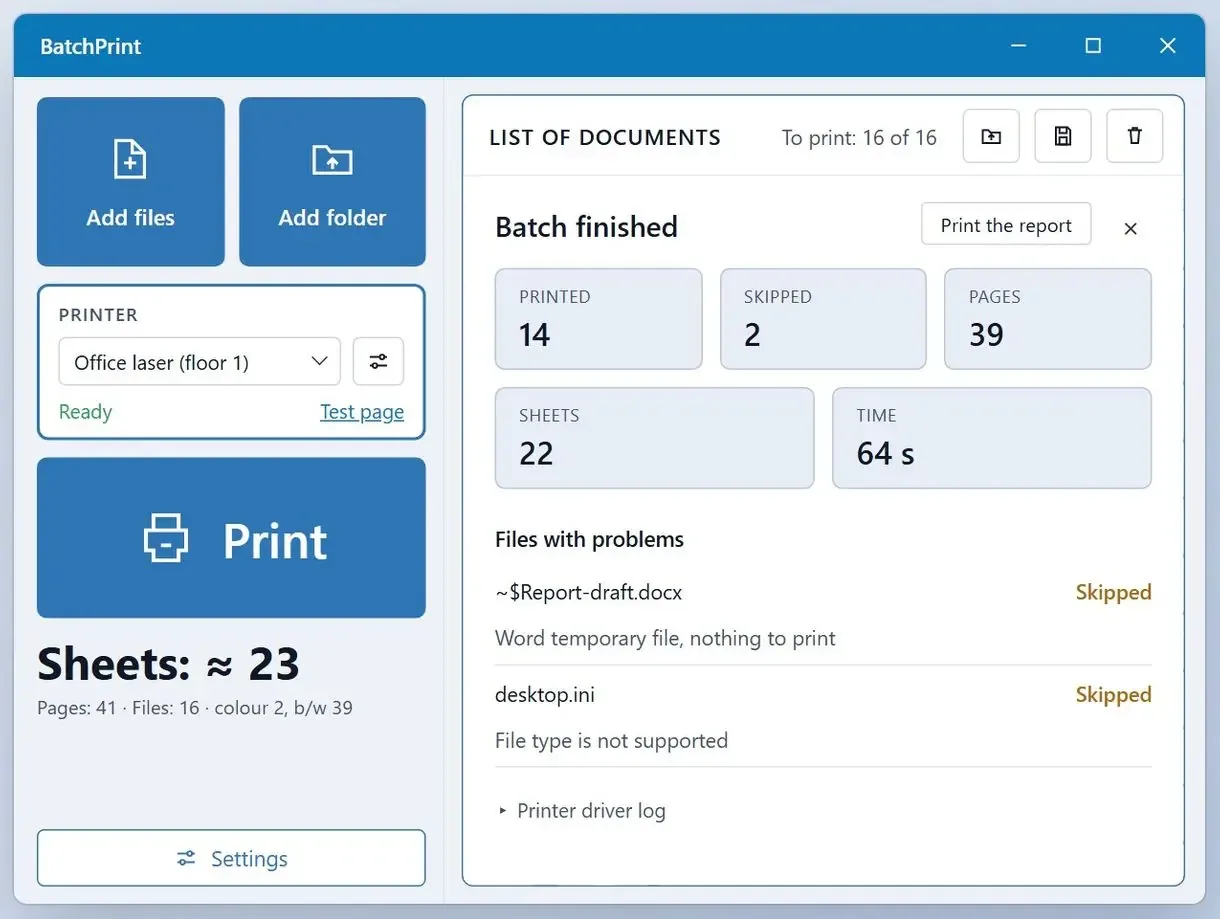
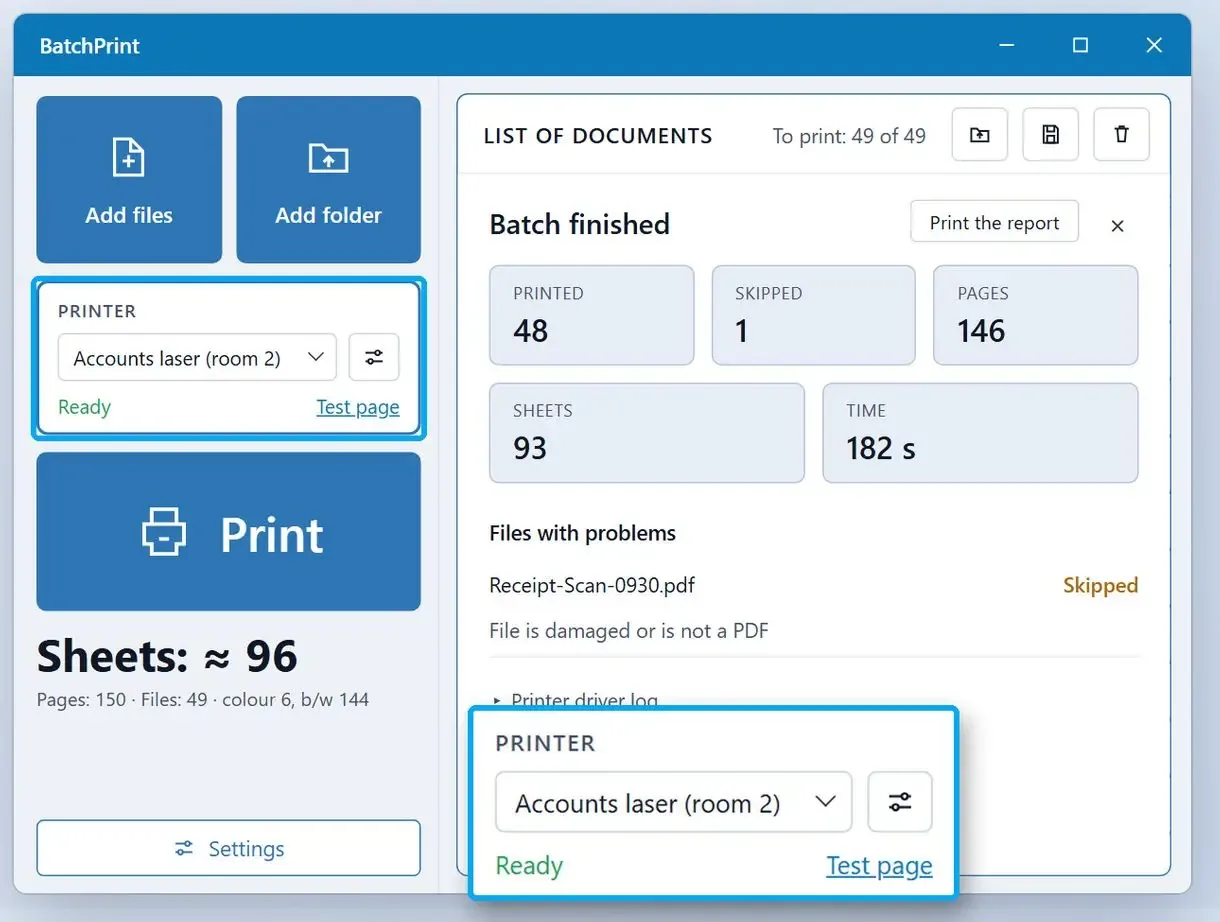
Batch Print Software renders PDFs with PDFium and sends the pages directly to the printer without starting a reader. This is how to print multiple PDF files without opening them: load a folder, pick a printer and print the whole list; the trial prints 10 files per batch.
One Acrobat Pro owner could not find batch processing and just wanted to select the files and print them.
The app reads each file into memory and renders it directly to the printer with PDFium, the open-source PDF engine. You can print a PDF that another program has open. To spread one picture across many sheets, print a poster on multiple pages.
The report lists every file, with a reason for each skipped file.
Right-click Print in File Explorer
- Print drops out of the menu past 15 files
- The PDF app starts for every file
- Default printer settings only
Print queue app
- A whole folder goes into one queue
- PDFium draws each page, no reader window
- Per-run copies, duplex and page range
How to print all PDFs in a folder in three steps
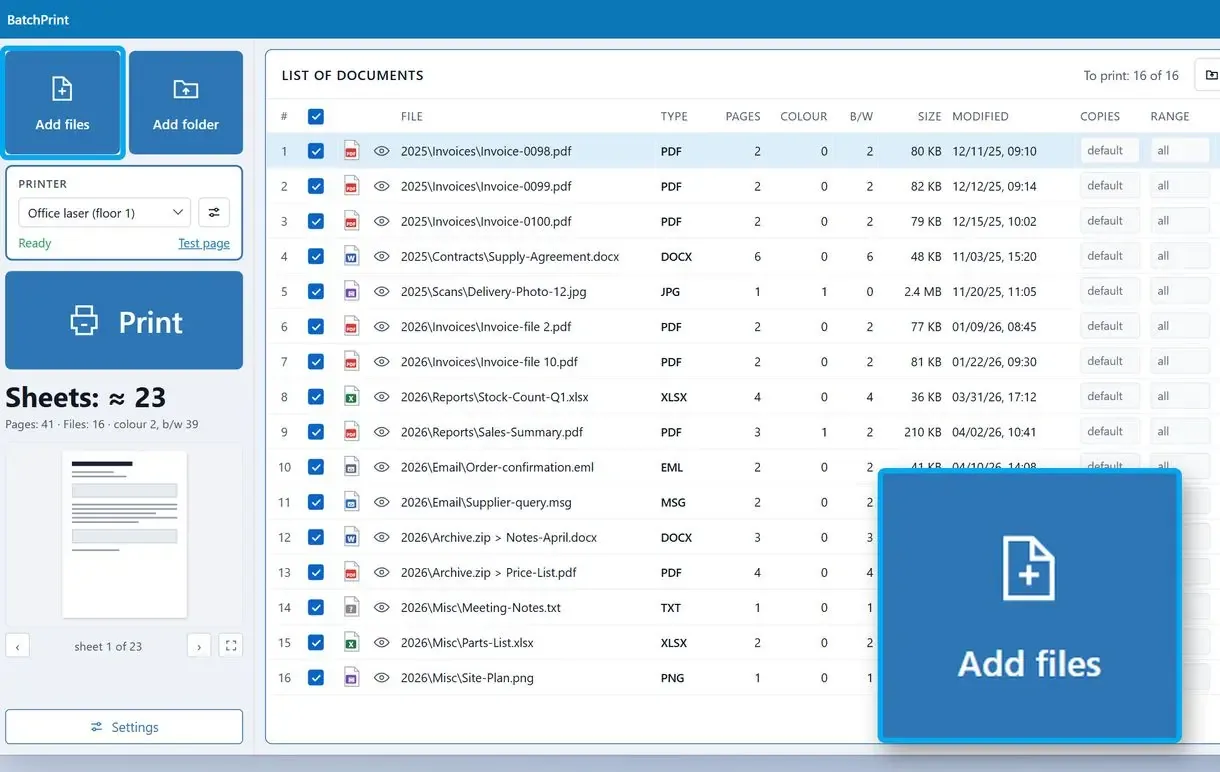
Add the PDFs or the whole folder
Click Add files, choose a folder, or drag the PDFs from File Explorer into the window.
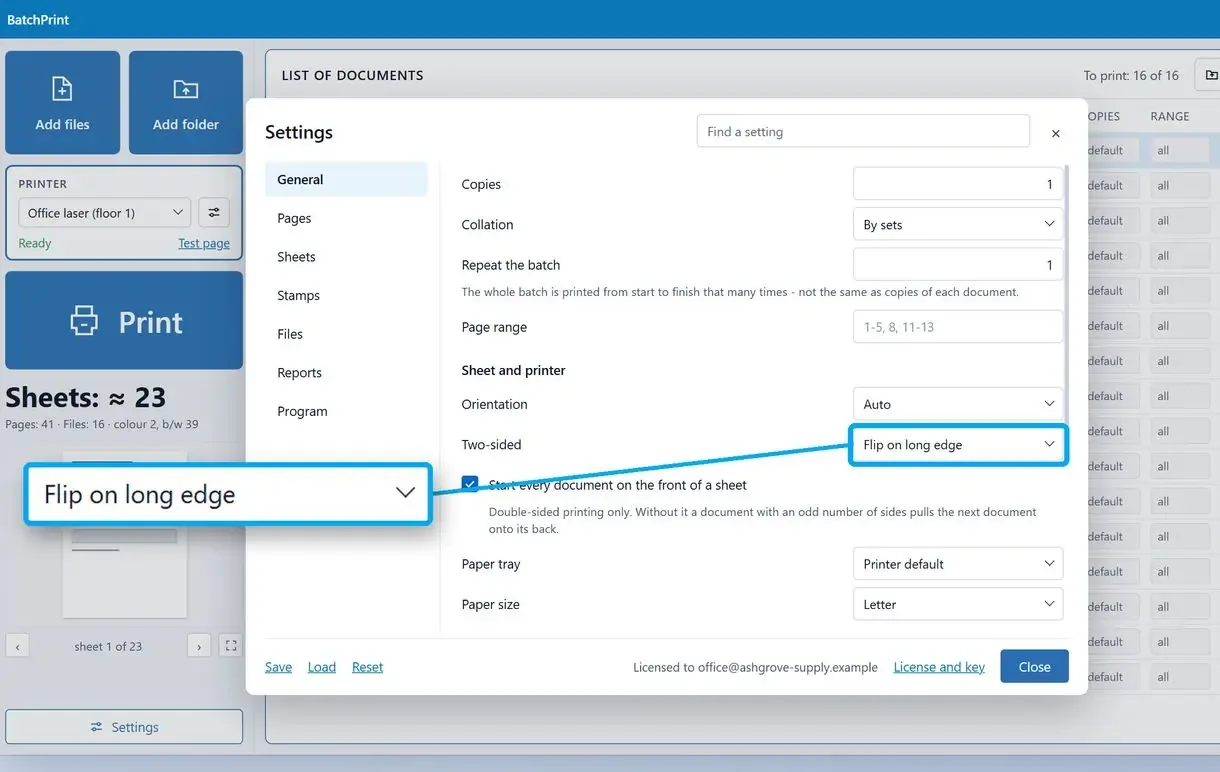
Set copies, page range and duplex
Set copies, pages to print, two-sided output, or pages per sheet to print multiple PDF pages on one sheet. The defaults print every page once.
Pick the printer and print the queue
Select your working printer and, as one tutorial author advises, make sure your printer is connected before you start.
How to print PDFs from File Explorer with right-click Print
Put up to 15 PDFs in one folder, select them and choose Print from the right-click menu. The default PDF app sends each file to the default printer without a print dialog.
Windows 10 and 11 use the same steps, with one extra menu in Windows 11:
- Head over to your file manager and gather the PDFs in one folder. File Explorer prints selections from one location only.
- Set your printer as the default.
- Hold Ctrl and start clicking on the PDF files you want, or click the first file and Shift-click the last.
- Stop pressing the Control button, right-click a selected file and choose Print. On Windows 11, choose Show more options first.
Check which printer is set as default before clicking Print. In one walkthrough no printer was attached, so Windows asked to give your output a name for every PDF and saved files instead of printing paper.
Why is Print missing from the right-click menu in Windows 11?
On Windows 11 the command sits in the classic menu behind Show more options. Still not there? Then either no app is registered to open .pdf files, or the selection mixes PDFs with other file types.
One Windows 11 user reported that Quick Print was no longer an option and now opens every document before printing it.
The default PDF app supplies the Print command. If it supplies none, Print stays hidden even for one file. Choosing another default PDF app in Settings, as Microsoft's guide to default apps shows, usually restores it. Selecting PDFs alongside .docx files can also hide Print. Sort the folder by type and select one type at a time.
Why does Print disappear when you select more than 15 files?
Microsoft hides Open, Print and Edit when you select more than 15 items, preventing a stray click from acting on a large set of files. Print in groups of 15 or use a program that accepts the whole folder.
The 15-file limit also applied in Windows 7 and 8; Windows 11 guides report the same behavior. Microsoft's article describes a registry value that changes the cap. We do not recommend editing the registry for a print job.
Click the first file, Shift-click the 15th, print, and repeat with the next 15. A license removes the separate batch cap in the queue app's trial.
Can you drag PDFs onto the printer or use Send To instead?
Sometimes. Drag PDFs onto a printer shortcut or choose a printer added to Send To when Print is hidden. Both routes use the PDF app, and on some PCs the files never print.
You can drag PDFs onto a desktop printer shortcut to queue them in Windows. One video tutorial adds the printer to the Send To menu instead. You open the Printers folder, which will show all of your available printers, and the shell:sendto folder, keep these two windows side by side and drag the printer across. Right-click the PDFs, choose Send To and the printer, and confirm the prompt about printing several files.
Someone who routinely prints dozens of PDFs and JPGs got an error when dragging batches of up to 15 into the printer queue. On a new PC, another user confirmed the reader's prompt to print several PDFs, but nothing printed. The support reply blamed Windows 10 because the same drag worked on Windows 7.
Each dropped file becomes a separate job in the print spooler. If one stalls, clear the printer queue and try again.
Does the PDF really stay closed when you print this way?
Right-click Print and drag-to-printer pass each file to the default PDF app. It runs in the background and may flash a window for each file. Here, "without opening" means without having to open each one by hand.
Most answers say "select, right-click, Print" without mentioning the reader. It stays closed only with a program that renders the pages itself.
How do you print all the PDFs in a folder in the right order?
Sort by name and number the files 01, 02 and so on if order matters. File Explorer usually sends files in the folder's sort order, but this is not guaranteed.
Ctrl+A selects the whole folder. For exact page order, such as a contract with numbered annexes, merge the PDFs into one file first. This adds a step and opens the files in the merge program.
You can also print multiple PDFs at once on Windows and Mac.
How to print PDF attachments from Outlook without opening each one
Save the email's attachments to one folder and print them from File Explorer or a print queue app. Users report that Outlook's attachment printing often prints the email itself and opens each attachment in Edge.
One office worker received more than 30 PDF attachments in a single Outlook email and had no time to open and print each separately.
The queue app from the first section also prints saved .eml or .msg emails without Outlook running. To convert saved messages to PDF, use an EML to PDF converter.
Which method fits your stack of PDFs?
Use right-click Print for a few PDFs now and then. For dozens of files or printing without a reader, use a print queue app. Keep drag-to-printer as a backup.
| Method | Files per run | Starts a PDF reader | Print settings | Best for |
|---|---|---|---|---|
| Batch Print Software | Whole folder, 10 per batch in the trial | No, PDFium prints directly | Copies, page ranges, duplex, pages per sheet | Large or regular print jobs |
| Right-click Print | Up to 15 | Yes, once per file | Default settings only | A few files now and then |
| Drag to printer or Send To | Varies, fails on some PCs | Yes | Windows print defaults | When Print is hidden |
| Merge into one PDF first | One merged file | Yes, to merge and print | Full print dialog | Fixed page order |
Sources
- PDF on Wikipedia - how the format stores fixed, printable pages
FAQ
Can you print multiple PDFs at once without opening them?
Select up to 15 PDFs in one folder, right-click and choose Print (Show more options first on Windows 11). For more files or no reader at all, add the folder to a print queue app.
What is the fastest way to print a whole folder?
A folder with 15 PDFs or fewer can go out from File Explorer after Ctrl+A and a right-click on the selection. Past that count the Print entry disappears, so split the files into rounds or add the whole folder to a print queue once.
How do I quick print a PDF without opening it?
To print a PDF without opening it in Windows 11, right-click the PDF in File Explorer and choose Print under Show more options. The file goes to the default printer with no print dialog, though the PDF app starts briefly in the background.
Can Windows print many files at once, not just PDFs?
Right-click Print supports any file type whose default app can print, with the same selection limit. The queue app in this guide prints DOCX and XLSX without Office, plus JPG and TIFF. For Word files, see how to print multiple Word documents at once.
Why does my PDF only open in my browser?
Your browser is the default app for .pdf files, so both double-clicking and right-click Print send the file to it. Choose another PDF app under Default apps in Windows Settings.
How many PDFs does the queue app print on the trial?
The trial prints 10 files per batch and 100 in total, then one per batch. Each batch ends with a notice sheet. There is no time limit; files over the cap are listed with the reason.