Quick answer:
- A folder or more than 15 PDFs: Batch Print Software prints the list in one run
- Up to 15 PDFs: select them in File Explorer, right-click, choose Show more options, then Print
- No Print item: make Adobe Acrobat Reader your default PDF app and try again
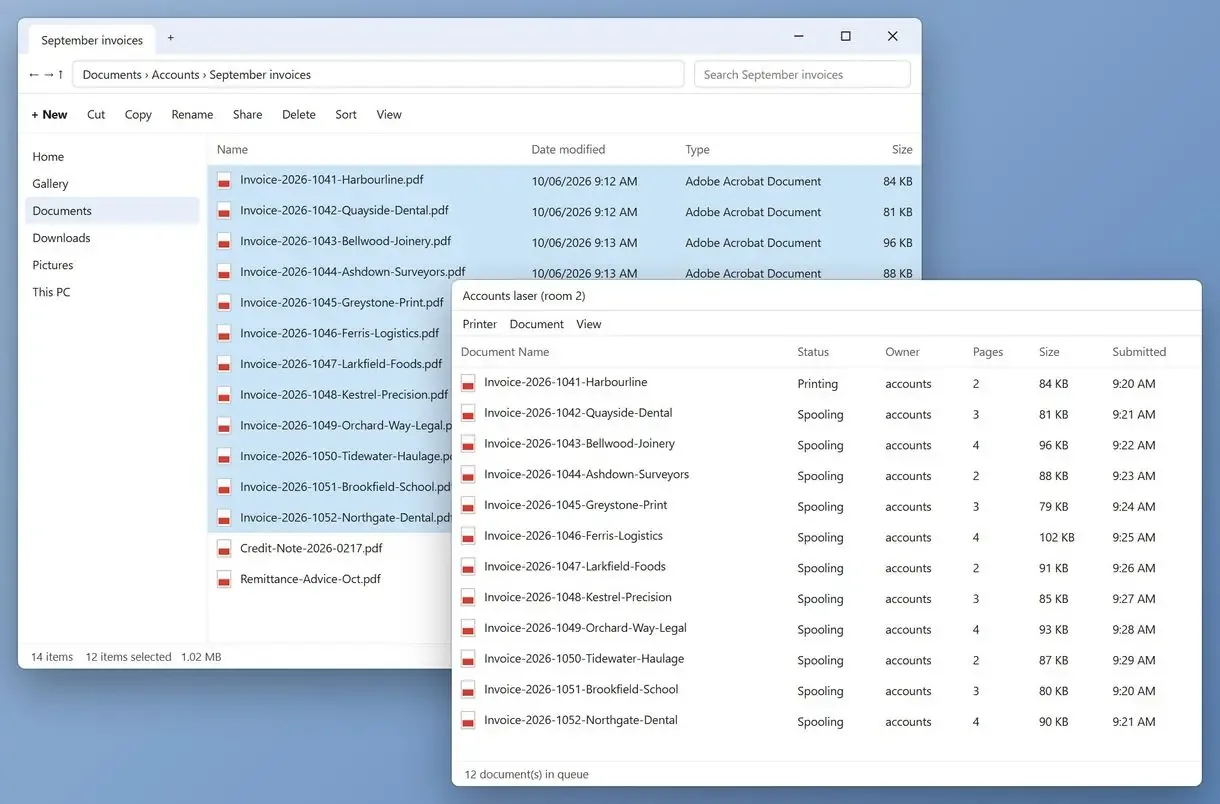
The same file limits apply to a stack of PDFs from a scanner or a mailbox.
In this guide
- A folder or more than 15 PDFs: one list, one set of settings, one run
- Up to 15 PDFs: File Explorer right-click, Show more options, Print
- Drag files into the printer queue if the driver allows it
What you need
- Batch Print Software on Windows 10 or 11, for folders and long lists
- A default PDF app that adds Print to the right-click menu, such as Foxit or Acrobat
- Enough paper in the tray for the run
- About 10 minutes for a first test
Can you print multiple PDFs at once from one list?
Add files or a folder to Batch Print Software, set paper, duplex and copies, and start. PDFs print from the list without opening in a reader.
Someone who prints ten or more PDFs at a time described opening, printing and closing each file daily. You can print them all in one go with consistent settings, with Word, Excel and image files in the same list. You can also print multiple PDF files at once on Windows and Mac, including macOS.
Right-click in File Explorer
- Up to 15 files per selection
- Each PDF opens in its own app window
- Paper and duplex come from each app's last use
With a print list
- A whole folder in one list
- One set of settings for every row
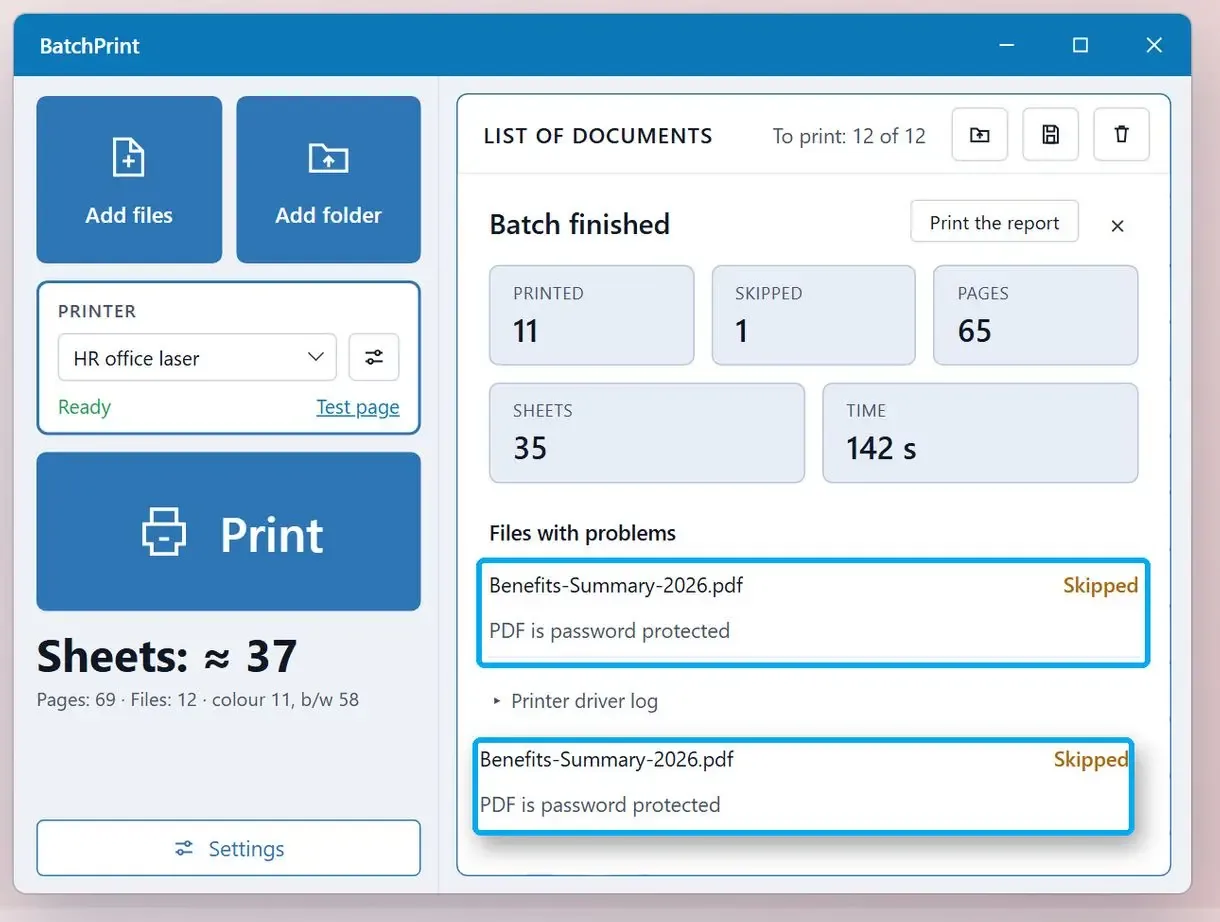
- Skipped files listed with a reason
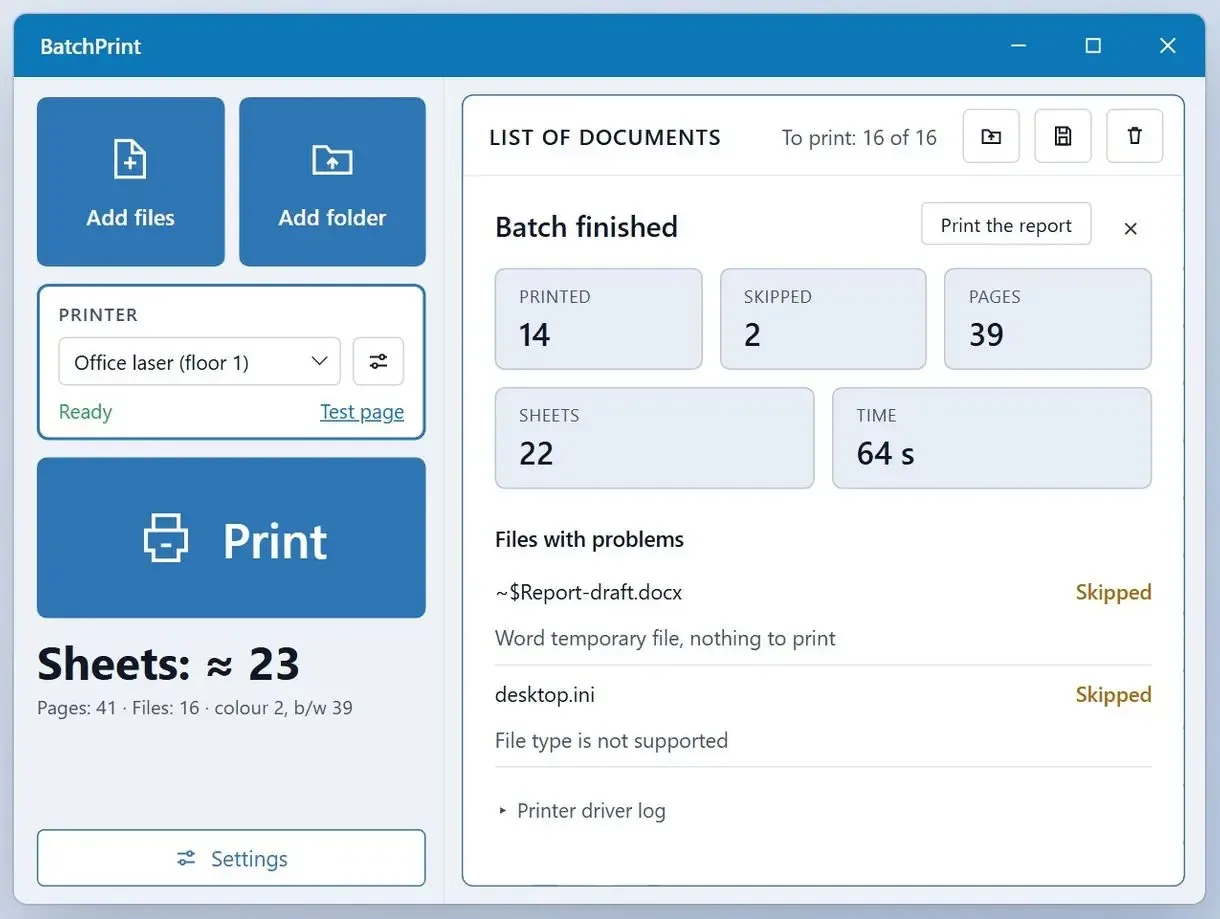
Print a folder of PDFs in three steps
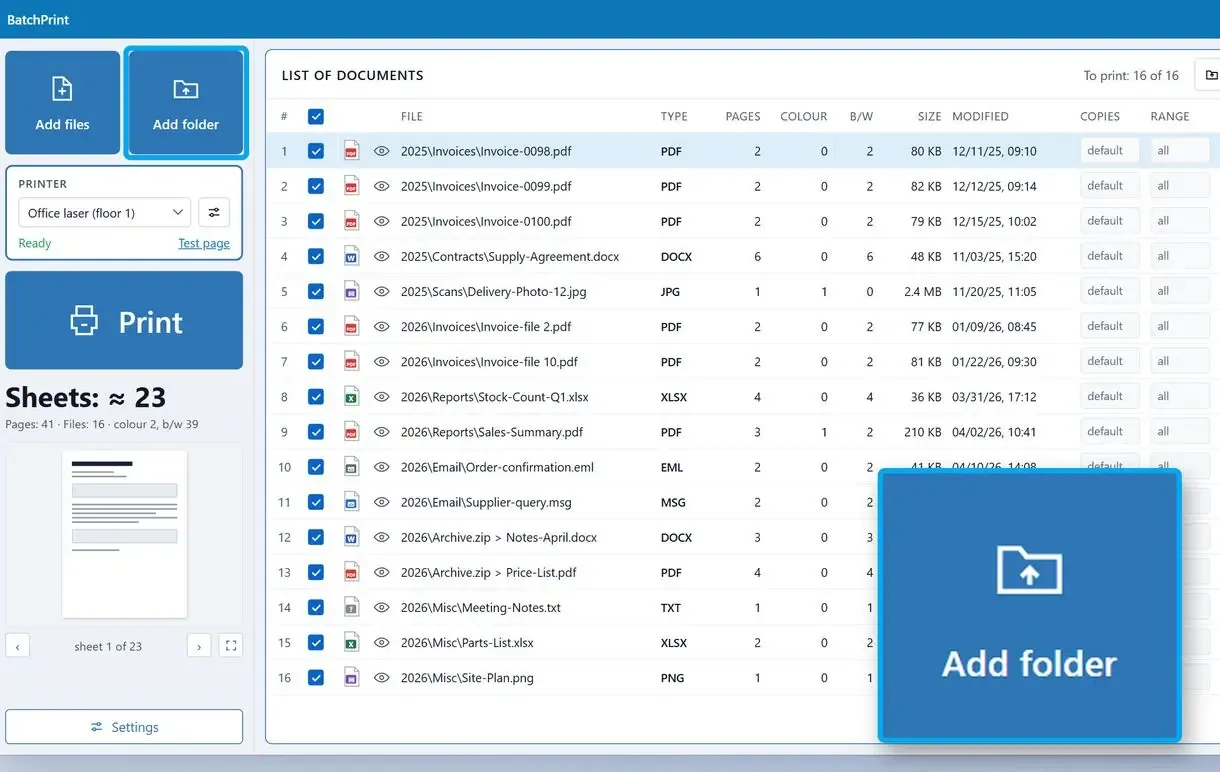
Add the PDFs or a whole folder to the list
Click Add Files or Add Folder. Files inside ZIP archives join the list too. Rows print from top to bottom; drag a row to move it.
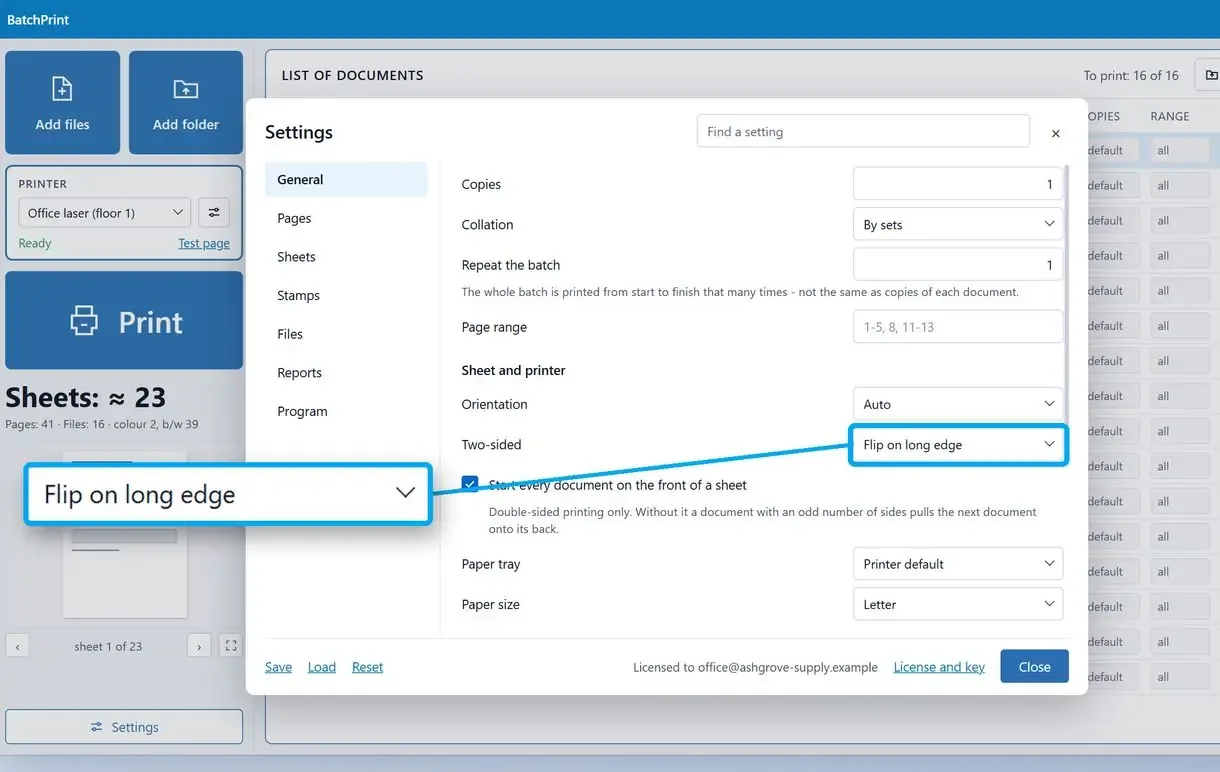
Set paper, duplex and copies once for the run
Pick paper size, double-sided printing, copies, page range and pages per sheet on the same screen. The settings apply to every row, with exceptions for individual files.
Start the run and check the report
Start printing. Locked or broken PDFs are skipped while the other files continue. The row and report show why.
How do you print multiple PDFs from File Explorer in Windows 11?
Select up to 15 PDFs in File Explorer, right-click, choose Show more options, then Print. Windows passes each file to your default PDF app, which sends it to your default printer.
- Open File Explorer, open the folder and select files with Ctrl or Shift, 15 at most
- Right-click the selection and choose Show more options
- Click Print and let every app window finish
- Count the pages in the tray before closing anything
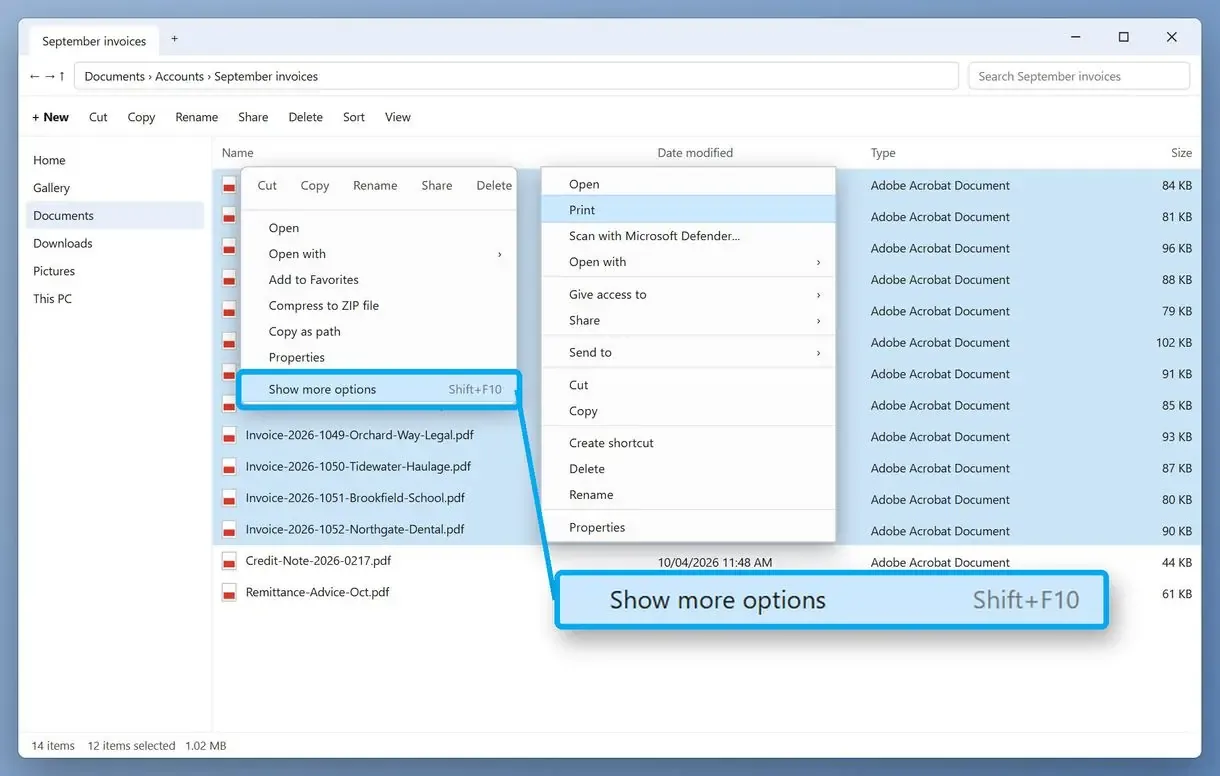
Windows 11 moved Print out of the short menu, which many people mistake for its removal. One office worker with more than 30 PDFs from Outlook tried saving, downloading and selecting different amounts, and wrote that nothing had worked. The usual causes are an oversized selection or a PDF app that does not add Print.
What is different when you print multiple PDFs on Windows 10?
On Windows 10, Print sits in the main right-click menu, without Show more options. The 15-file limit and default-app rule still apply.
Why does Print disappear when you select more than 15 files?
Select 16 or more files and File Explorer hides Open, Print and Edit from the context menu. Microsoft designed this to prevent accidental actions on dozens of files.
The limit covers every file type, including mixed Word and PDF selections. Winaero's write-up on missing context menu items describes it on Windows 10 too.
Microsoft's article calls the limit by design, though many Windows 11 users see a step backward. It names a registry value for raising the threshold, intended only for controlled environments. This guide leaves it alone.
Why is there no Print option for PDFs at all?
Your default PDF app supplies the Print item. With Edge or Chrome opening PDFs, right-click Print often does nothing; with Adobe Acrobat Reader or Foxit as the default, it appears.
Word files can therefore print from the menu while PDFs do not. Open Settings > Apps > Default apps, find .pdf and pick a desktop PDF reader. Microsoft's guide to default apps shows each screen. One user restored the missing Print item by setting Acrobat as the default PDF app again.
Can you drag PDFs into the print queue instead?
Sometimes. Open Settings > Bluetooth & devices > Printers & scanners, pick your printer, click Open print queue and drag the PDFs into that window. This depends on the printer driver.
Microsoft support staff suggest this for Windows 11, though one user could not drop files into an HP queue. Files pass through the Windows print spooler one job at a time. A support-thread helper warns that 50 MB of PDFs at once might pause your spooler, so feed a large folder in parts. Set your printer defaults ahead of time; this route uses those settings.
Where does File Explorer fall short when you print multiple PDF files on Windows 11?
Windows sends each PDF as a separate print job. Pages can come out of order, duplex is not guaranteed, and Windows does not report files that fail to print.
CastleInk's printing guide notes that 50 files can mean 50 copies of your PDF app running. In one older Acrobat setup, each PDF opened a window and kept the PC busy until the last page printed. One office found that 8 files sent through the right-click menu could give 5 printouts, with no error for the other 3. GeekChamp's walkthrough says settings cannot change across a selection, so set up each app before a double-sided or color job.
Count the sheets against the files before you walk away.
How to print multiple PDF files at once from a folder with more than 15 files?
Split the folder into groups of 15 for File Explorer, try dragging files into the print queue, or add the folder to a print list for one run.
Groups of 15 suit occasional jobs, but you must track which files printed. Acrobat's folder routine requires Pro; Reader alone cannot run it. For a weekly job, keep a dedicated folder for big batches with only the PDFs you actually want to print, to avoid surprises. Then add it to Batch Print Software and start one run.
Use the trial to test your printer. It adds a notice page after each run. A license removes both caps.
Which way should you print your PDFs?
Past 15 files, or for one duplex setting across the batch, use a print list. For up to 15 files with the printer already set up, right-click in File Explorer.
- More than 15 files or one duplex setting across the batch: use a print list
- Up to 15 files with the printer already set up: right-click in File Explorer
- Print missing for even one PDF: change the default PDF app first
- Small folder and a driver that accepts dropped files: try the print queue
| Method | Files per run | Settings | Watch for |
|---|---|---|---|
| Batch Print Software list | A whole list or folder (trial: 10 per run) | One set for all rows, exceptions per file | Notice page in trial runs |
| File Explorer right-click | Up to 15 | Each app's last setting | Separate jobs, order not guaranteed |
| Print queue drag | Depends on the driver | Printer defaults | Large folders can stall the spooler |
| Acrobat Pro folder action | A whole folder | Set inside the action | Acrobat Pro only |
For weekly large print jobs, shared settings keep the output consistent. To spread one big image across sheets, print a poster on multiple pages.
Sources
- Microsoft: context menus are shortened when more than 15 files are selected - official explanation
- PDF on Wikipedia - history and structure of the Portable Document Format
FAQ
How do I print multiple PDFs at one time?
Select up to 15 in File Explorer, right-click, choose Show more options and Print. For more, use groups or a print list.
How to print multiple files at once on Windows?
Right-click Print works for Word, Excel and PDF files, up to 15 per selection, when each file type's app adds Print. You can also print multiple Word documents at once.
How to print all the files in a folder without opening each one?
For up to 15 files, press Ctrl+A, right-click and print. For larger folders, use groups of 15 or a print list.
How do I print a PDF file using File Explorer?
Right-click it, choose Show more options on Windows 11, then Print. If missing, set a desktop PDF reader as the default for .pdf files.
How do I print multiple PDF documents in a folder?
Sort by name in the order you want on paper, then add the folder to a print list. Rows print top to bottom; File Explorer sends each file as its own job, so the order can shift.
Will the PDFs print in the order I selected them?
Not always: File Explorer sends each file as its own job, and they can finish out of order. Print in small groups and check the stack, or use a list that prints in row order.
Does the print list app in this guide print Word and Excel files without Office?
Yes, DOCX and XLSX files, with simpler layouts than Word and no headers or footers. With Microsoft Office installed, older DOC and XLS files and PowerPoint files print through Office.