PDFDOCXXLSXJPGEMLMSG
How to Print Multiple PDFs at Once
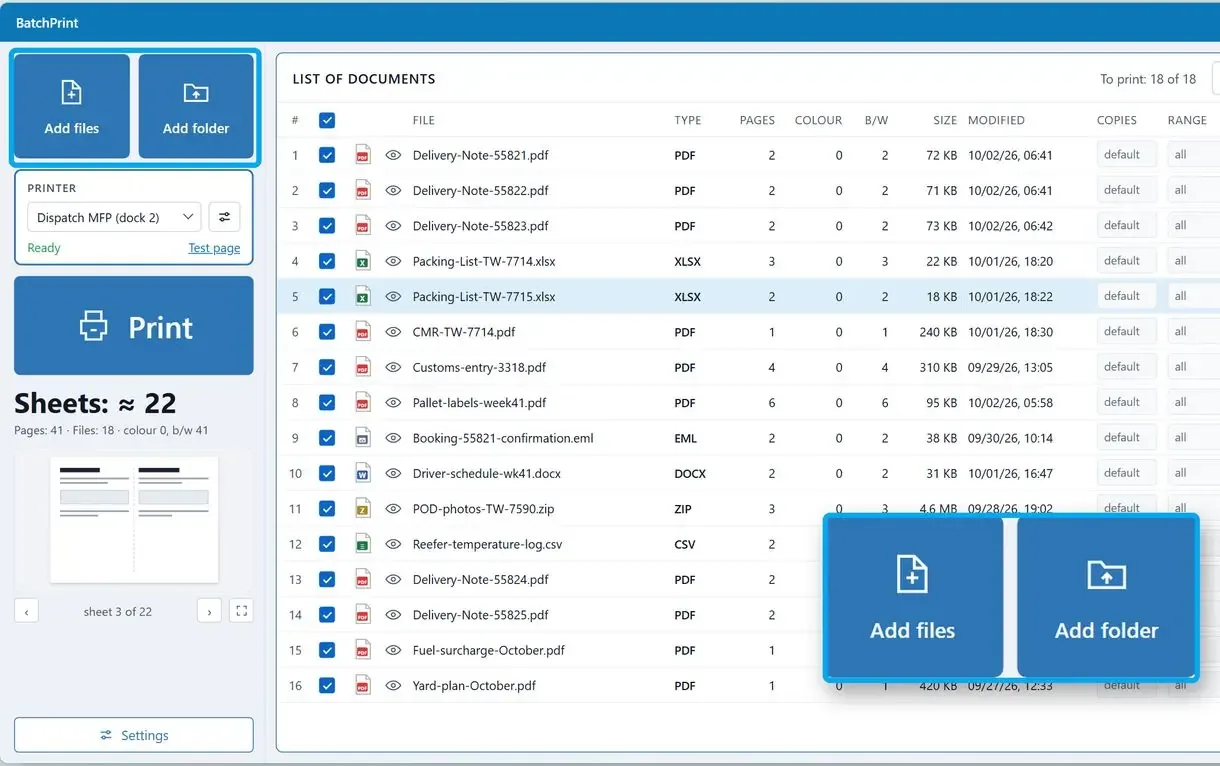
Here is how to print multiple PDFs at once without opening them: Batch Print Software puts a folder of PDF, Word, Excel, image and email files into one queue and prints them in a single pass. Copies, two-sided printing and pages per sheet are set for every file, and a report shows what printed and what was skipped, with the reason.
- One queue for PDF, Word, Excel, images and emails
- Prints top to bottom in list order, nothing opens on screen
- Copies, duplex and pages per sheet for each file
- Report of printed and skipped files, with the reason
Windows 10 and 11 · Microsoft Store · free trial: 10 files per run
Quick answer:
- Dozens of PDFs or a whole folder on Windows: Batch Print Software prints the list in your order with one set of settings
- Up to 15 PDFs on Windows 11 or 10: select them in File Explorer, right-click, then Show more options > Print
- One stack in strict page order: merge the PDFs into one file and print that file
- Mac: drag the selected PDFs from Finder onto the printer queue
How to print multiple PDFs at once depends on the count: for up to 15 files of one type, File Explorer prints with a right-click. A whole folder, a strict order or a mix of PDFs and Word files calls for a print queue; File Explorer handles one file type per selection. The Mac route is below.
In this guide
- Use a print queue app for a whole folder or dozens of PDFs
- Right-click Print in File Explorer for up to 15 PDFs
- Merge PDFs first when the stack needs strict page order
- Use a saved Print action on the folder if you have Acrobat Pro
What you need
- A print queue app on Windows 10 or 11, for folders and long lists
- File Explorer, for up to 15 PDFs per round
- A printer set as default, plus one test page before the full run
- About 10 minutes for the first run
How to print dozens of PDF files at once with a print queue app
The app prints a whole folder of PDFs from one list, in the order the rows show, with one set of printer settings for every file. Files that fail to open are skipped and named in the report, and the rest of the batch keeps printing.
One office worker who prints 30 to 40 invoices a day described the routine as open, print, close, then on to the next file. The program reads each PDF itself, so no viewer window pops up per file and you are not clicking through dialogs.
Scans saved as JPG or PNG can sit in the same list as the PDFs. A mixed folder of contracts, scans and invoices can print them all in one go, sorted the way you set it.
Right-click Print in File Explorer
- Up to 15 files per selection
- One file type per round
- Printer defaults only, no print dialog
Print queue app
- A whole folder, subfolders included
- PDFs, Word files and images in one list
- Printer, duplex and copies set once for every file
A paid license removes the per-batch cap and the notice sheet.
Print a folder of PDFs with the queue app in four steps
Add the folder of PDFs to the queue
Click Add folder and pick the folder. Files in subfolders come in too. To leave some out, untick them in the list or add a skip mask such as *.docx in the settings. Add single files with Add files or by dragging them onto the list.
Check the order and untick what you do not need
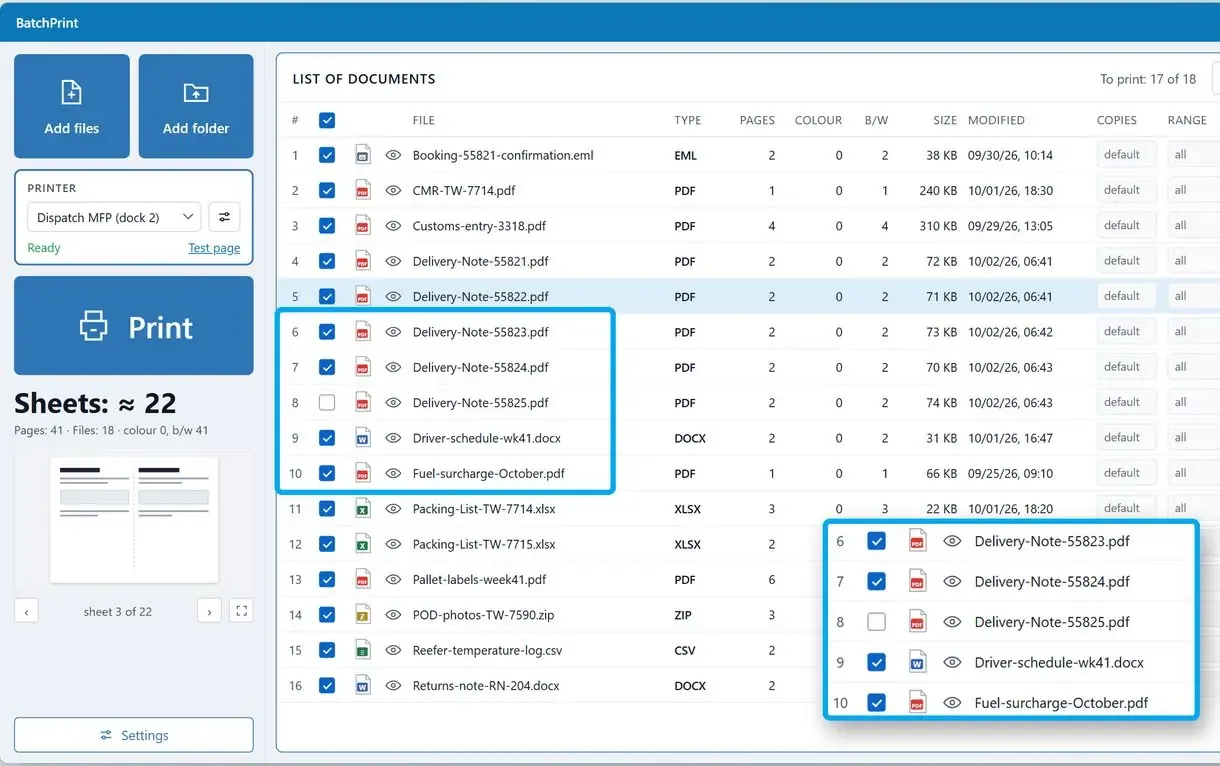
Rows print from top to bottom. Sort the list by name to match your paper stack, then clear the check box beside any file to leave it out.
Choose the printer and the settings for the whole run
Pick the printer and tray, then set two-sided printing, the number of copies, collation and pages per sheet.
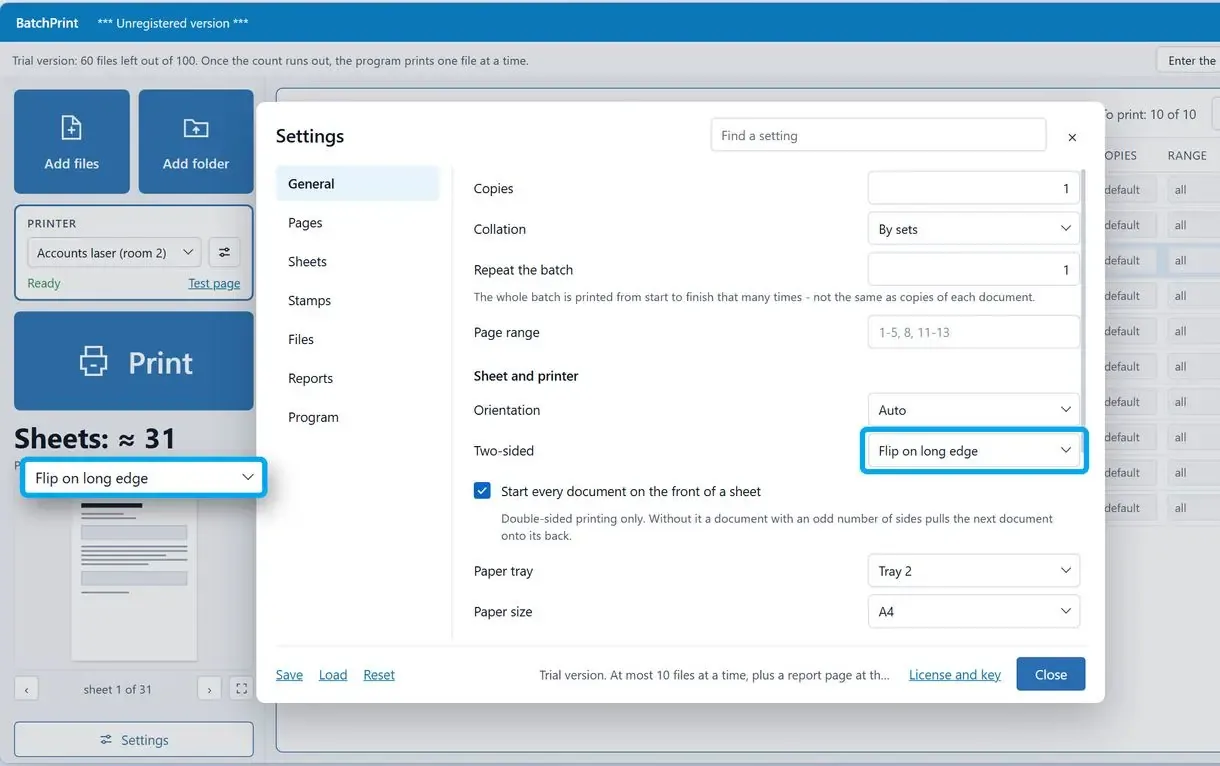
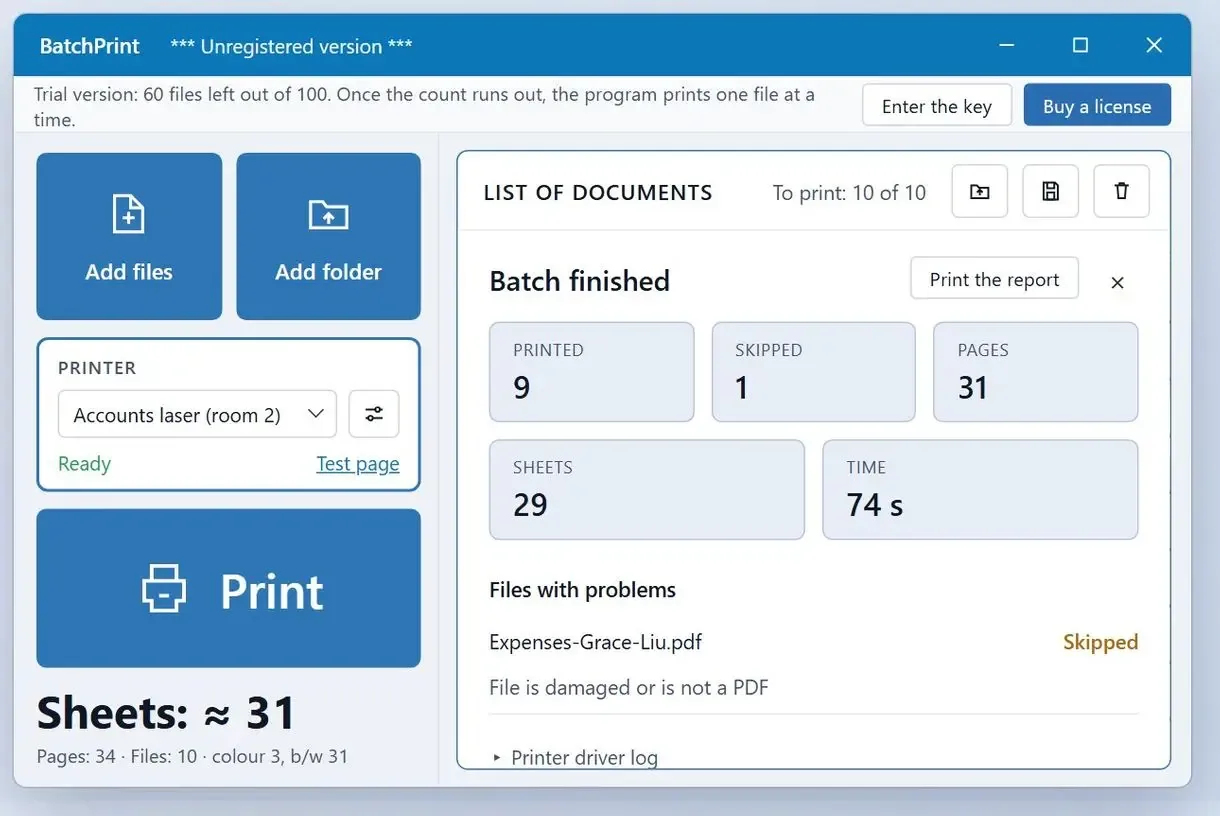
Click Print and read the report
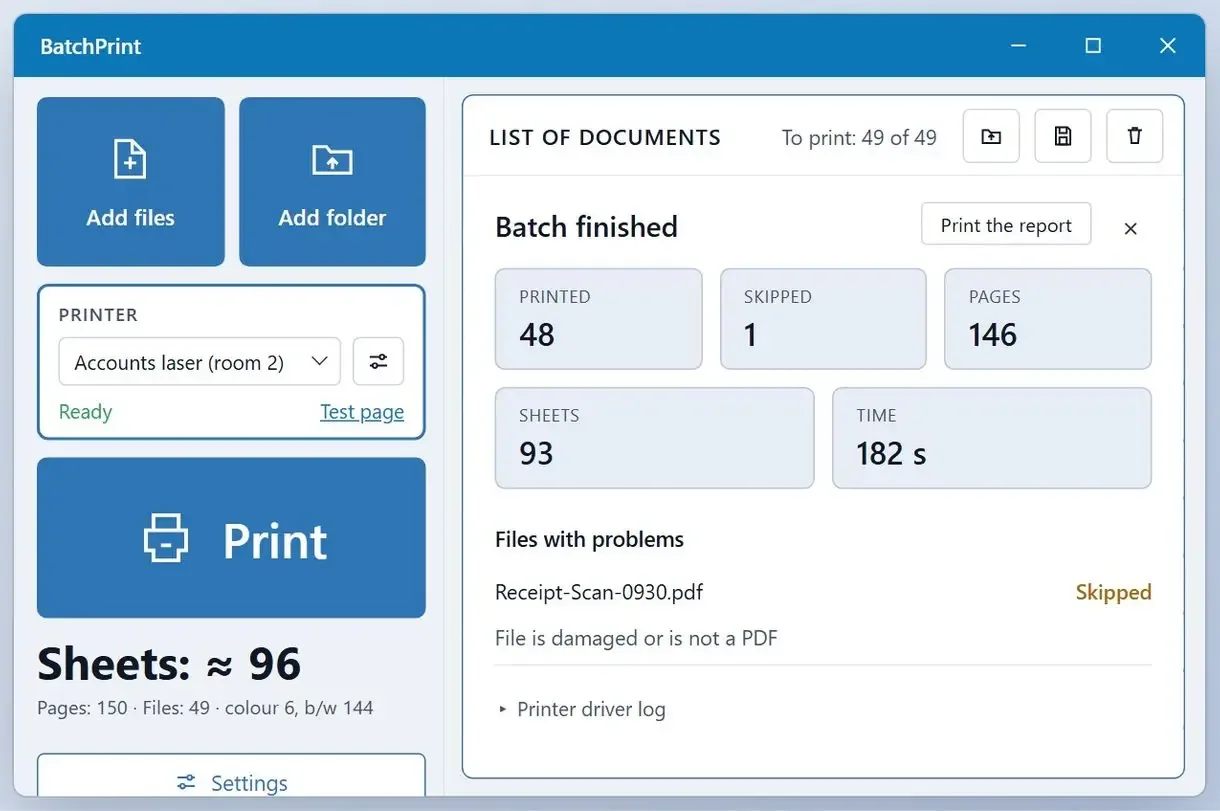
Press Print and let the queue run. A damaged or password-protected PDF is skipped; its row and the report show the reason.
How to print multiple PDFs at once from File Explorer on Windows 11 and 10
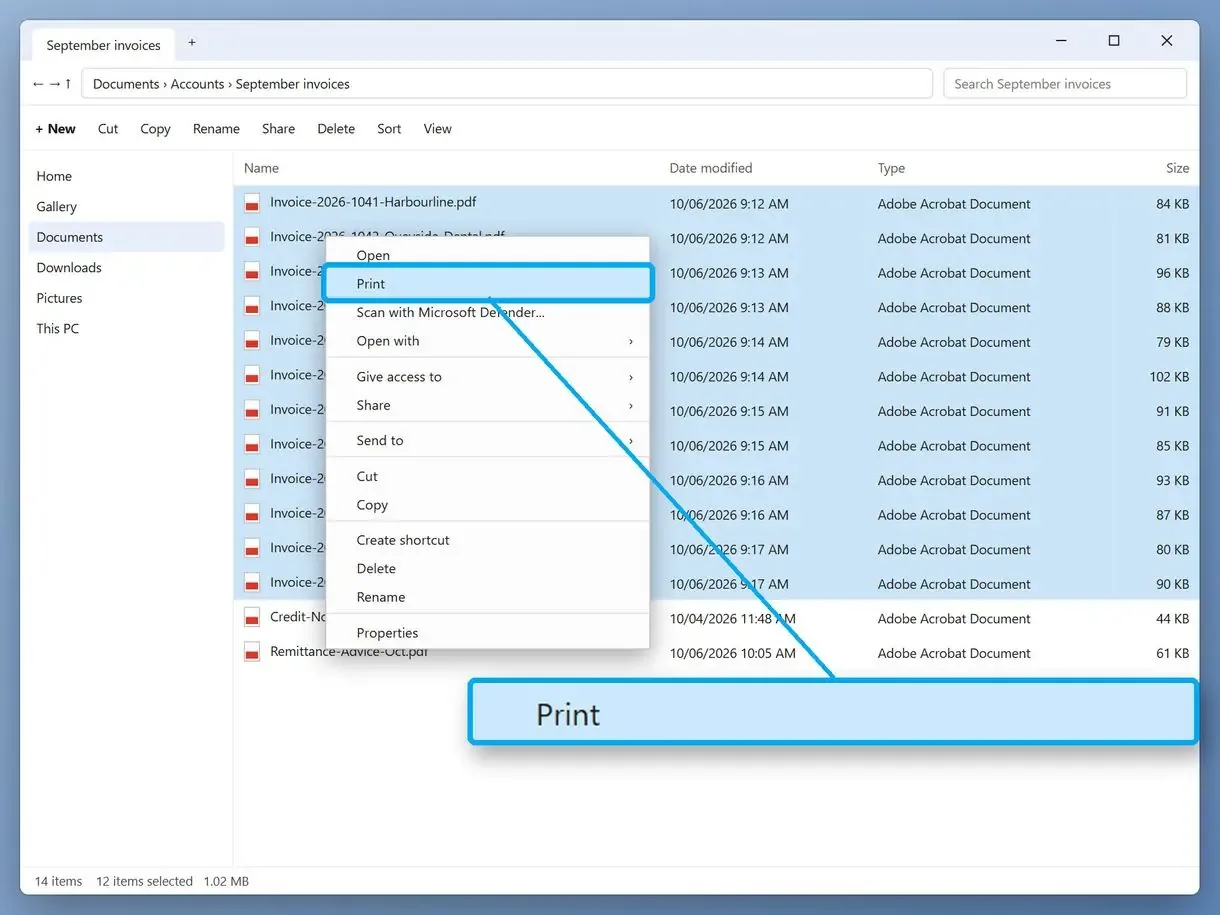
Select up to 15 PDFs in File Explorer, right-click the selection and choose Print. On Windows 11 the Print entry sits in the full menu under Show more options, and each file goes to your default printer through the app that opens PDFs.
The built-in right-click route costs nothing and suits a short list where order does not matter much.
- Open the folder and select the files. Ctrl+click adds single files, Shift+click adds a range, Ctrl+A takes the whole folder.
- Right-click any selected file. On Windows 11, click Show more options to open the full menu.
- Choose Print. Each PDF becomes its own print job on the default printer.
On Windows 10, the Share tab in the ribbon has a Print button for the same selection. Windows sends the files without opening them one by one in front of you, though your PDF app may flash on screen for each file as it hands the job to the spooler.
Another reader found no Print entry in the right-click menu, even with a single PDF selected. Printer help guides point at the app set to open PDFs: the menu shows Print only when that app offers it, so choosing a desktop PDF reader as the default usually brings the entry back.
Why does Print disappear when you select more than 15 files?
Windows hides Open, Print and Edit from the right-click menu when more than 15 files are selected, and Microsoft says it does so on purpose. Select 15 files or fewer, print them, then select the next group.
The cap comes from a Windows setting named MultipleInvokePromptMinimum, which defaults to 15, as Microsoft's troubleshooting article on shortened context menus explains. Each selected file starts its own app process. A post on The Old New Thing, Microsoft's developer blog describes the limit as a way to contain the damage when someone opens a huge selection by accident.
The 15-file cap predates Windows 11. Winaero's write-up on the missing menu items lists the same behavior in Windows 7, 8.1 and Vista.
Many people read the missing entry as a bug, and some guides suggest raising the registry value. Microsoft's own article says a value of 16 shows the menu items for any number of files yet still blocks opening more than 16 of them, while other write-ups report that larger values worked for them. With the sources disagreeing, we do not recommend the registry edit. Groups of 15 or a print queue give a predictable result.
How to print all files in a folder, PDFs and subfolders included
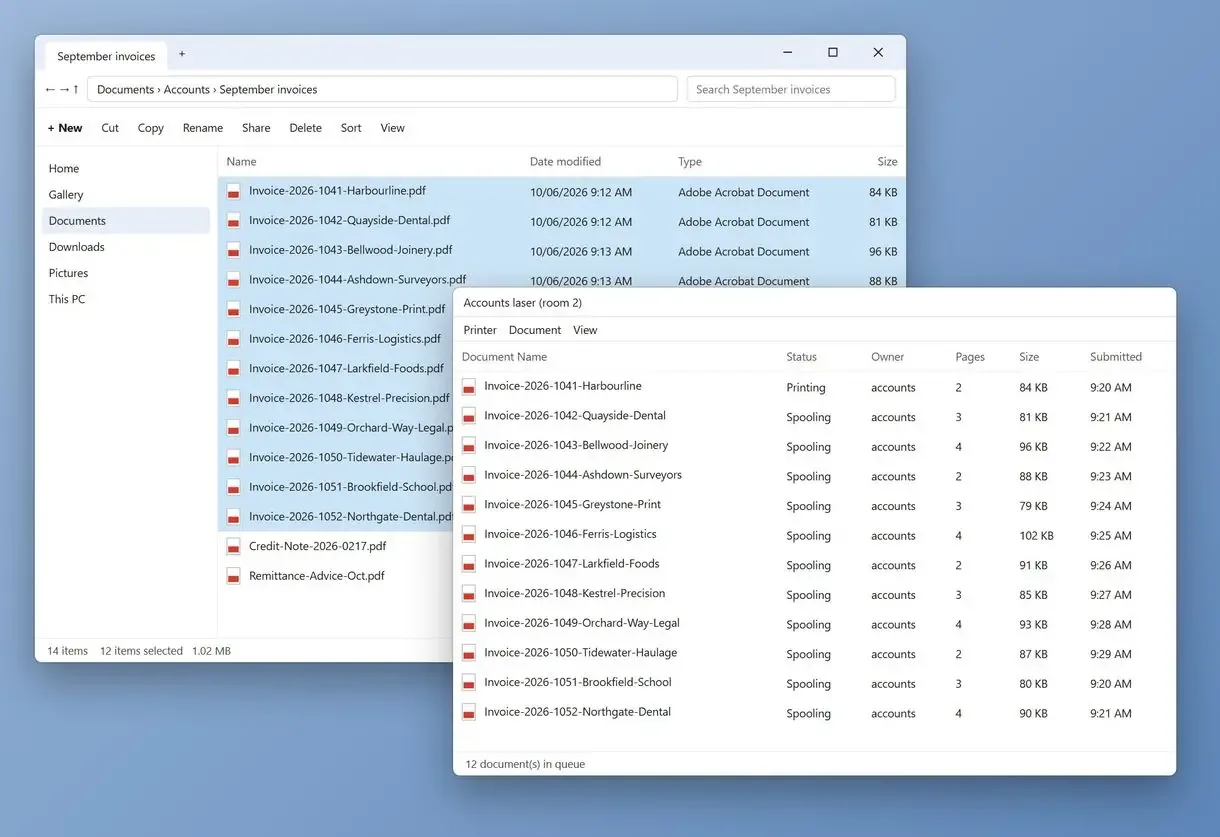
File Explorer can print a folder only in groups of 15 files of one type, so a folder of 60 PDFs takes four rounds. A print queue takes the folder itself, subfolders included, and prints every matching file in one run.
Here is how to print all PDF files in a folder with File Explorer: sort the folder by name, select the first 15 files with Shift+click and print. Repeat with the next 15, keeping the window open to see where you stopped. Ctrl+A selects everything, but the Print entry disappears when more than 15 files are selected.
One tutorial suggests keeping only the PDFs you mean to print in that folder, to avoid surprises. A dedicated folder for each job helps in both methods, because Ctrl+A in Explorer and Add folder in the queue pick up everything inside, old drafts included.
In the queue app, use a skip mask to keep unwanted files in a mixed folder out of the list. Type quote*.pdf;report*.pdf to leave the quotes and reports behind and print only the invoices, or untick single rows. The program reads subfolders too.
How do you keep multiple PDFs in the right print order?
File Explorer sends each PDF as a separate print job, so the pages can come out in a different order from the folder. Number the file names (01, 02, 03) and print in small groups, or use a queue that prints its list from top to bottom.
A printer help guide from Castle Ink names the main catch: every PDF becomes its own job, so neither the order nor the two-sided layout is guaranteed. Numbering the file names fixes the sort order in the folder, but jobs can still reach the printer in a different sequence. Check the first pages as they come out.
One Acrobat XI user on Windows 10 dragged a longer list into the copier queue and got only the first two files on paper. With a stack of 40 statements, a missing file is easy to overlook until a client asks for it.
In the queue app, the row order is the print order. Sort the list by name, untick files you do not need, and check the report for files printed or skipped. That record helps catch anything missing from the middle of a long run.
How do you set duplex and copies for the whole batch?
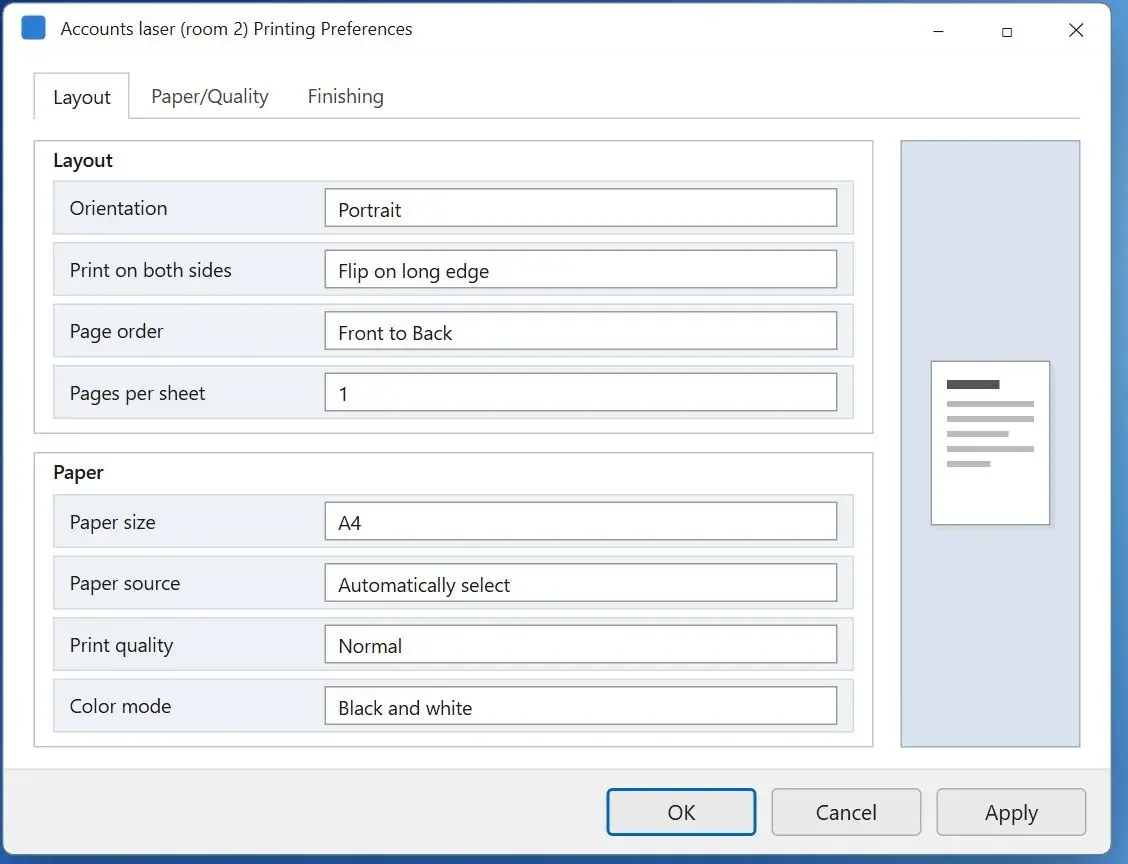
Right-click printing skips the print dialog, so two-sided printing, copies and paper size come from the printer's default preferences. Set those defaults before you start, or use a queue that applies one set of settings to every file in the list.
Video walkthroughs of multi-file printing give the same advice. Decide your printer defaults ahead of time, because the run uses whatever the printer is set to. In Windows, open the printer's Printing preferences and turn on two-sided printing there before the batch, then switch it back after if other people share the printer.
The printer itself is the other trap. A university IT help page puts it plainly: the batch goes to the last printer you used, so print one file as a test first.
Before you run big batches, look at both sides of that test sheet. A drawing set sent to the office laser instead of the plotter is a stack of paper you will not get back.
The queue app lets you pick the printer and duplex settings once for the whole list, so 50 files print with consistent settings without changing system defaults.
Pages per sheet puts two or four pages of one document on a single sheet, as Adobe's help on multiple pages per sheet explains. To spread one image across several sheets, see how you print a poster on multiple pages.
Can you print multiple PDFs at once, Word files included?
File Explorer prints one file type per selection, so PDFs and Word files go in separate rounds through their own apps. The queue app puts PDFs and Word files in one list, along with images and saved emails, and can print everything together in the order you set.
UCLA's IT knowledge base notes that the files in one right-click batch must share a type and that the 15-file cap still applies. A folder with 20 PDFs and 8 Word files takes three rounds in Explorer, each opening a different app.
The queue reads DOCX files without Microsoft Office, though headers and footers are left out in that mode. Older DOC, RTF and ODT files print through an installed copy of Office. For a stack of Word files, see how to print multiple Word documents at once.
One reader had more than 30 PDFs attached to a single Outlook email and no time to open them one at a time. Save the attachments into one folder and print it. If you save the emails themselves as EML or MSG files, the queue app lists each attachment as its own row, so the invoices print without opening Outlook again.
Should you merge the PDFs into one file before printing?
Merging the PDFs into one file and printing that file keeps the page order and gives you a single print dialog for the whole stack. It fails when each document needs its own staple, or when two-sided printing must start every document on a fresh sheet.
On forums the most common advice for keeping order is short. Merge the files, then print the single PDF. Most PDF editors can do it, and Acrobat calls the feature Combine Files. For a report assembled from chapters, a merged file is the cleanest route.
An office that prints client statements could not take that advice, because each statement gets its own staple, so one continuous file was no use. Duplex adds a second problem. If a statement has an odd number of pages, its last back side receives the first page of the next statement, and the set has to be split by hand.
A queue keeps each document as its own file in a fixed order, which suits stapled sets, client packs and anything filed separately. Merge only if the stack gets read as one document.
How to print a folder of PDFs with an Adobe Acrobat Pro action
Acrobat Pro can print a folder through a saved action. Add the Print command to a new action, point it at the folder and run it. The feature needs the paid Pro edition, and Acrobat still works through the files one after another on screen.
Video guides to this route open with the same warning: it needs Acrobat Pro, because the automation tools are a Pro feature. If you already pay for it, the setup takes a few minutes.
- In the Action Wizard, create a new action and add the Print command.
- Add the folder with your PDFs as the files to process.
- Clear the Prompt User option so Acrobat does not stop at every file, and choose not to save changes.
Once saved, the action is a simple, reusable workflow for the same folder. One person printing from a network share watched Acrobat open a new window for every PDF, and the computer stayed tied up until the last page came out. Another user with 200 files reported the same thing even with Prompt User cleared, so start the action on a PC you can leave alone for a while.
How do you print multiple PDFs on a Mac?
On a Mac, select the PDFs in Finder and drag them onto the printer's icon in the Dock or into its print queue. Set two-sided printing as the printer default first, because this route skips the print dialog just like the Windows right-click method.
The Dock route works on macOS. It has the same weak spots as File Explorer, one job per file and no say over the order.
Which method fits your stack of PDFs?
Pick by the size of the stack. Up to 15 PDFs of one type, use File Explorer. A whole folder, a set order or the same duplex settings for every file call for a print queue. Merge only when the stack must come out as one continuous document.
- More than 15 files, a whole folder or mixed file types: Batch Print Software, Add folder, Print.
- Up to 15 PDFs where order is not critical: File Explorer, right-click, Print.
- One continuous document in strict order, no stapling per file: merge first, then print once.
- Acrobat Pro already installed on a PC you can spare: a saved Print action on the folder.
- A Mac: drag the files onto the printer queue.
| Method | Files per run | Print order | Duplex and copies | What you need |
|---|---|---|---|---|
| Batch Print Software | A whole folder (10 per batch in the trial) | List order, top to bottom | Set once in the program | Windows 10 or 11 |
| File Explorer right-click | 15, one file type | Not guaranteed | Printer defaults only | Nothing extra |
| Merge, then print | One combined file | Kept | One print dialog | A PDF tool that combines files |
| Acrobat Pro action | A whole folder | One file after another on screen | Printer defaults | Paid Acrobat Pro |
| Mac Dock or print queue | Any selection | Not guaranteed | Printer defaults only | macOS |
If you handle large print jobs every week, the queue can save a lot of time over repeated rounds of 15 and checking every page order.
Sources
- MacMyths: printing multiple PDF files at once in Windows 11 - notes that Windows 11 has no shared print dialog for a multi-file selection
FAQ
Is there a way to print multiple files at once without opening them?
Yes. Select up to 15 files of one type in File Explorer, right-click and choose Print; Windows sends each to the default printer. To print multiple PDF files without opening them and without the 15-file cap, a print queue app reads the PDFs itself, so nothing opens in a viewer.
How do I select multiple files at once on Windows 11?
Hold Ctrl and click each file, click the first file and Shift+click the last to take a range, or press Ctrl+A to select the whole folder. Keep the selection at 15 files or fewer to print it.
Can I print a PDF file using File Explorer?
Right-click the PDF and choose Print; on Windows 11, open Show more options first. If Print is missing even for one file, set a desktop PDF reader as the default app for PDFs.
How to print multiple files at once in Windows?
For up to 15 files, use right-click Print in File Explorer and repeat for the next group; 100 files means seven rounds. For a whole folder in one run, add it to a print queue and press Print once.
How do I print multiple Word documents at once?
Right-click Print works for up to 15 DOCX files, and Word opens each one in turn. The print queue app in this guide also prints DOCX files from a folder in one list with your PDFs.
Is there a way to print all PDFs that are open at once?
Only if your PDF viewer has a command to print every open tab. Otherwise, close the tabs and print the saved files from File Explorer or a print queue.
Why does dragging files onto the printer queue not work?
Users report that dragging 15 files onto the Windows printer queue window shows an error or does nothing. Use right-click Print for small groups, or add the files to a print queue program.
How many files does the Batch Print Software trial print?
The trial prints 10 files per batch with every setting available and adds one notice sheet at the end of each batch. After 100 printed files it drops to one file per batch; a license removes both limits.
Can the queue app print PDF attachments from Outlook emails?
Yes, from saved emails. Save the messages as EML or MSG files or save the attachments to a folder, then add that folder to the queue. Each attachment of a saved email appears as its own row in the list.